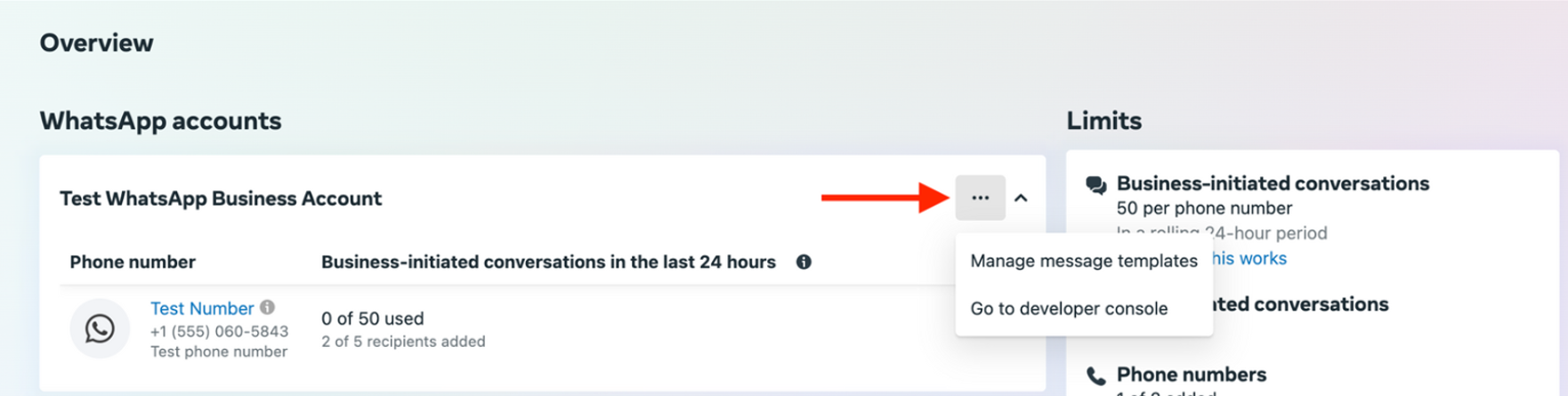
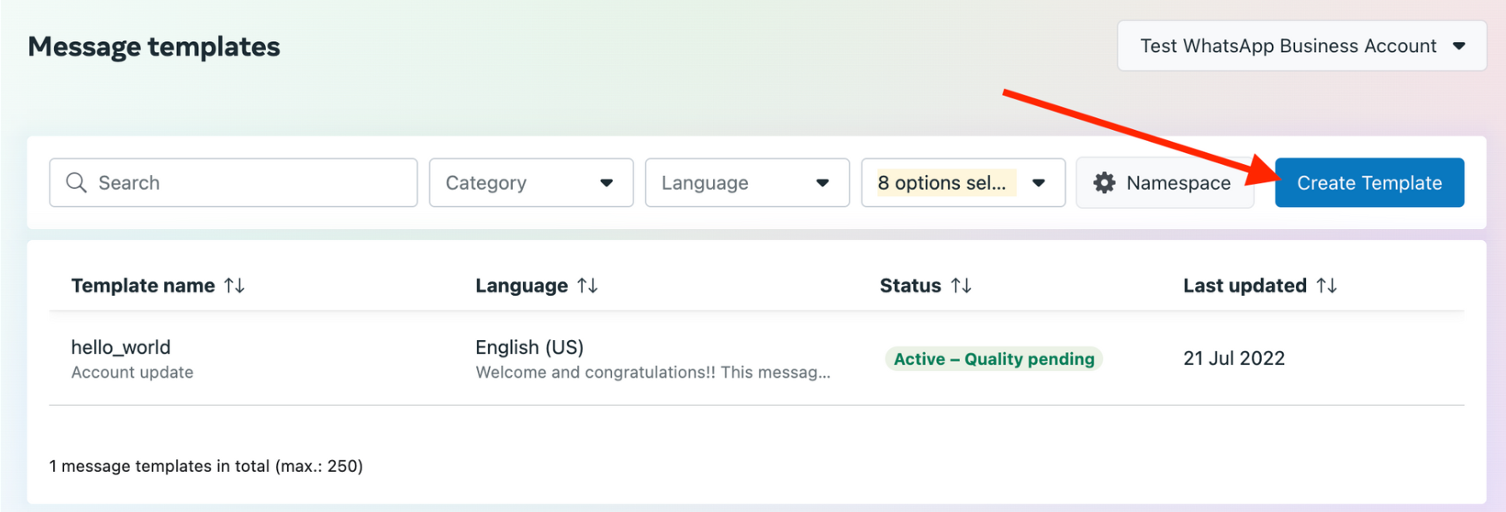
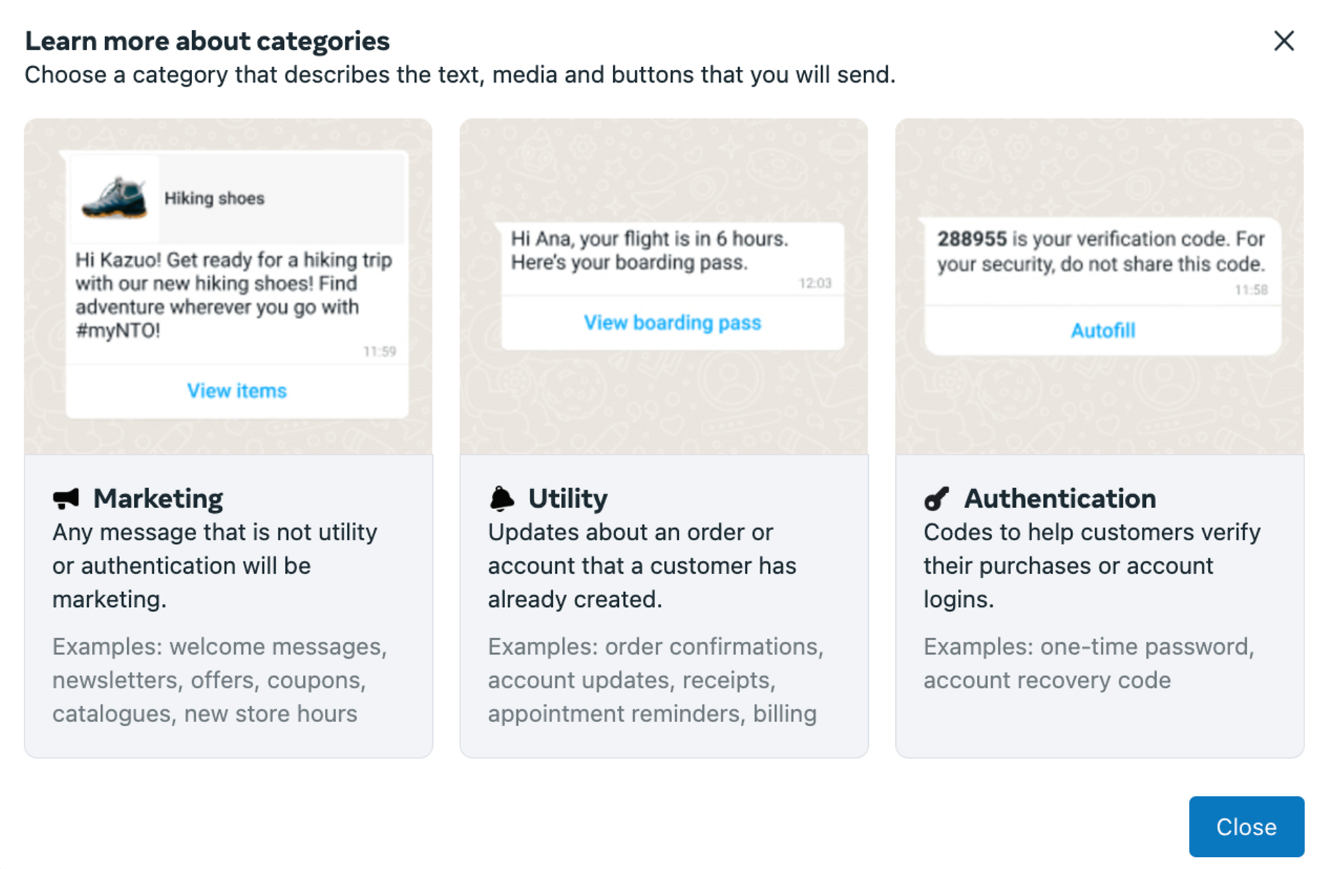
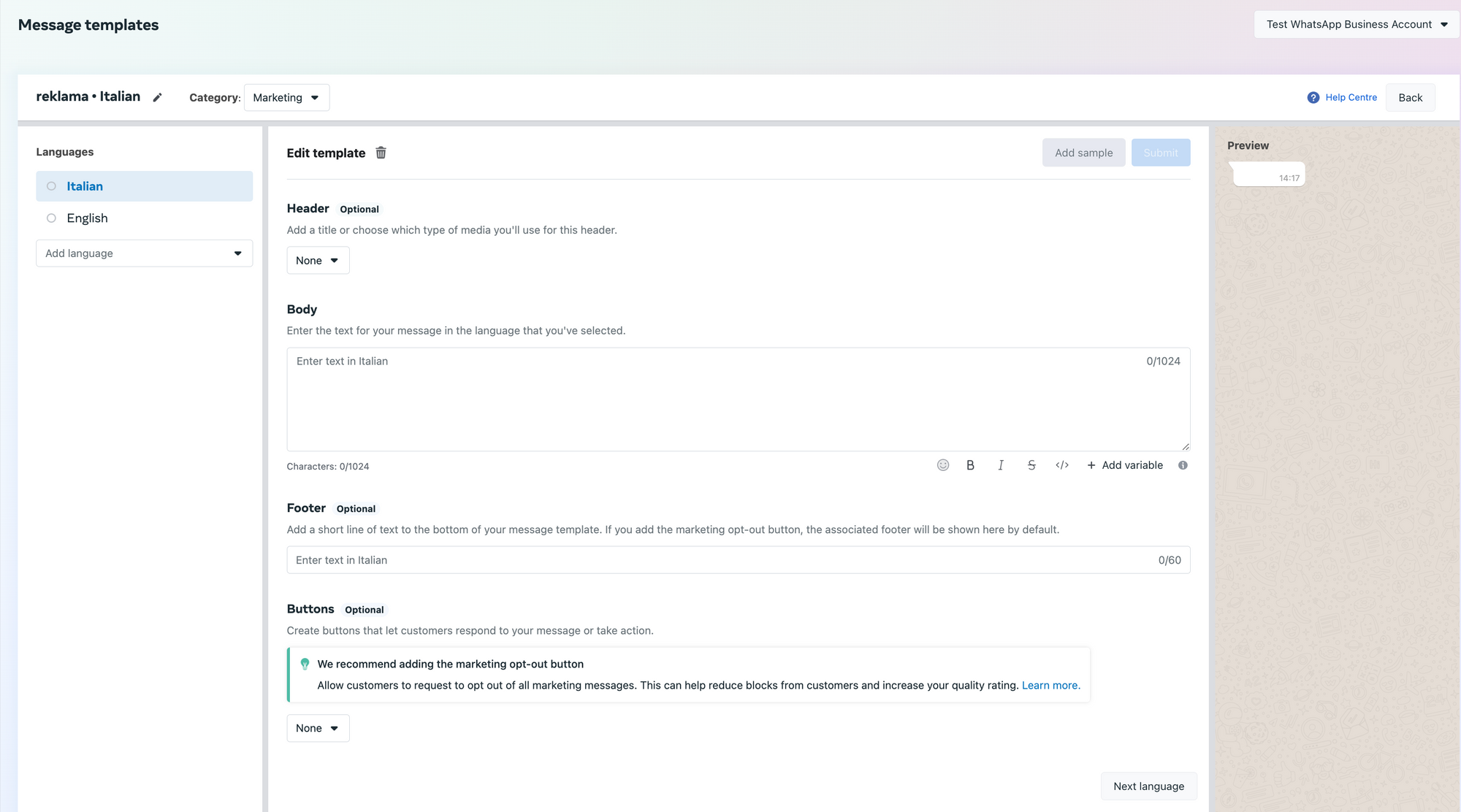
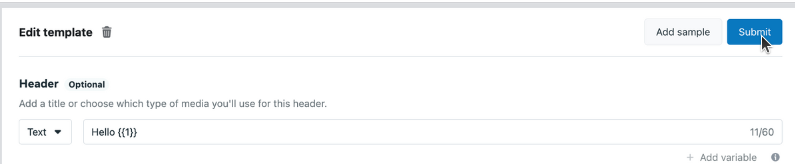
Templates let you send messages to customers even when the 24-hour messaging window has closed. They're the official way to reach out when customers haven't recently messaged you or to send messages to contacts you've imported who have never messaged you before.
What is 24-hour rule?
24-hour window is a rule by Meta. Think of it like this: when someone messages your company, you have 24 hours to chat with them freely. After that, you'll need to wait for them to message you again before you can continue the chat.
Every time they send a new message, your 24-hour timer resets. This helps ensure people only get messages when they're actively interested in talking with your business.
Once your templates are approved, you can use them in Chatfuel:
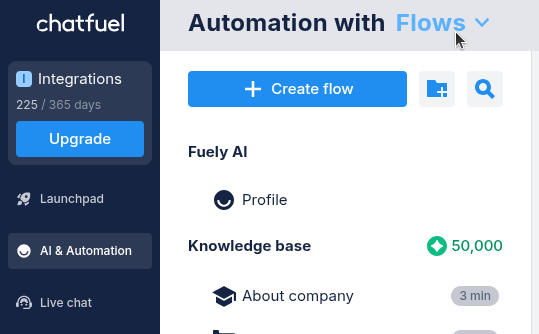
1. Open AI & Automation ➜ Flows.
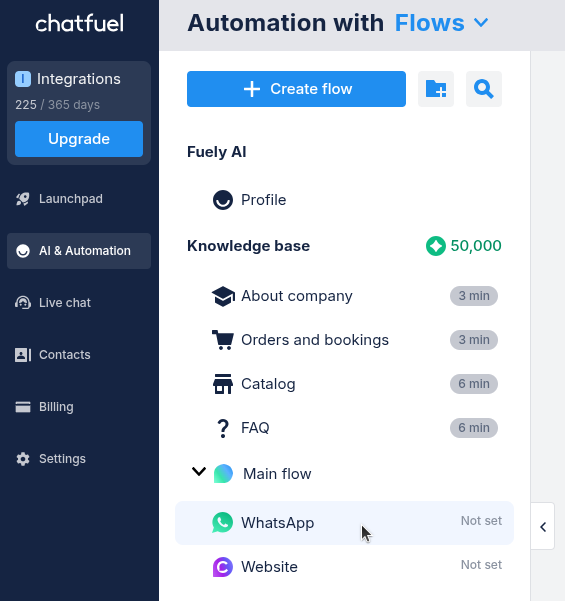
2. Use the Main flow or create a new flow. We’ll use Main flow as example.
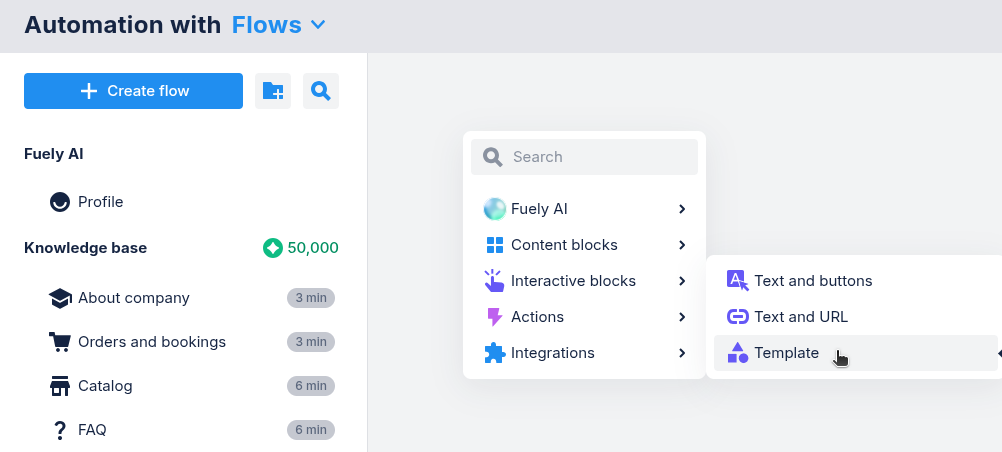
3. Right click on the canvas to open the menu, then choose Interactive blocks ➜ Template.
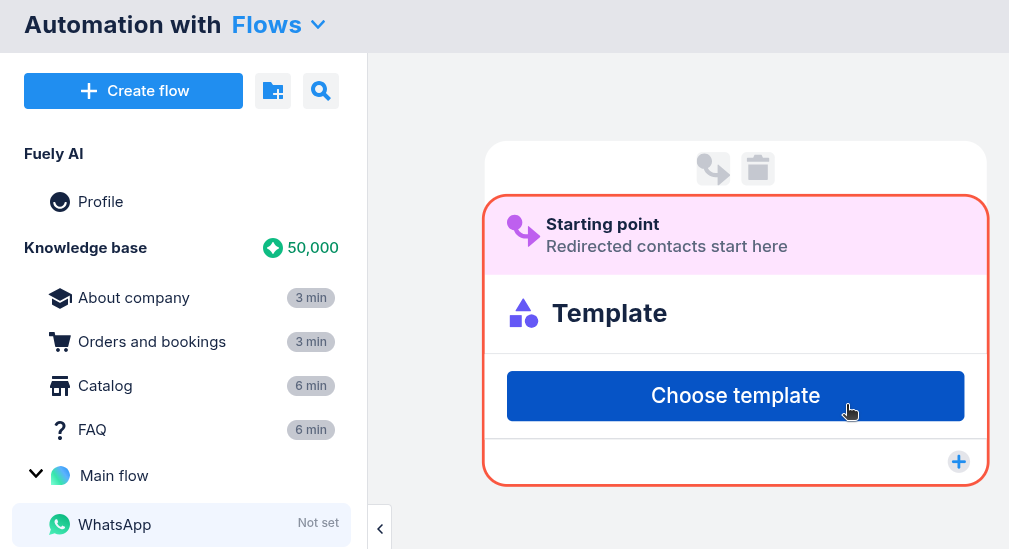
4. Click Choose template.
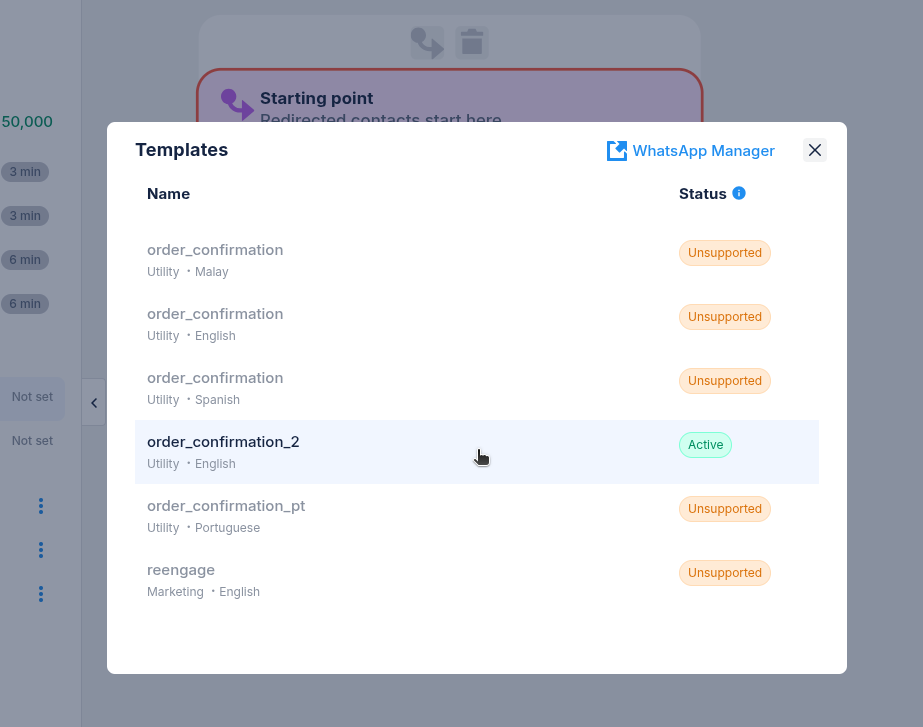
5. Choose a template you want to use from the list.
Important: If you don’t see any templates in the list, first create a template in Meta ⬈ and wait for it to be approved.
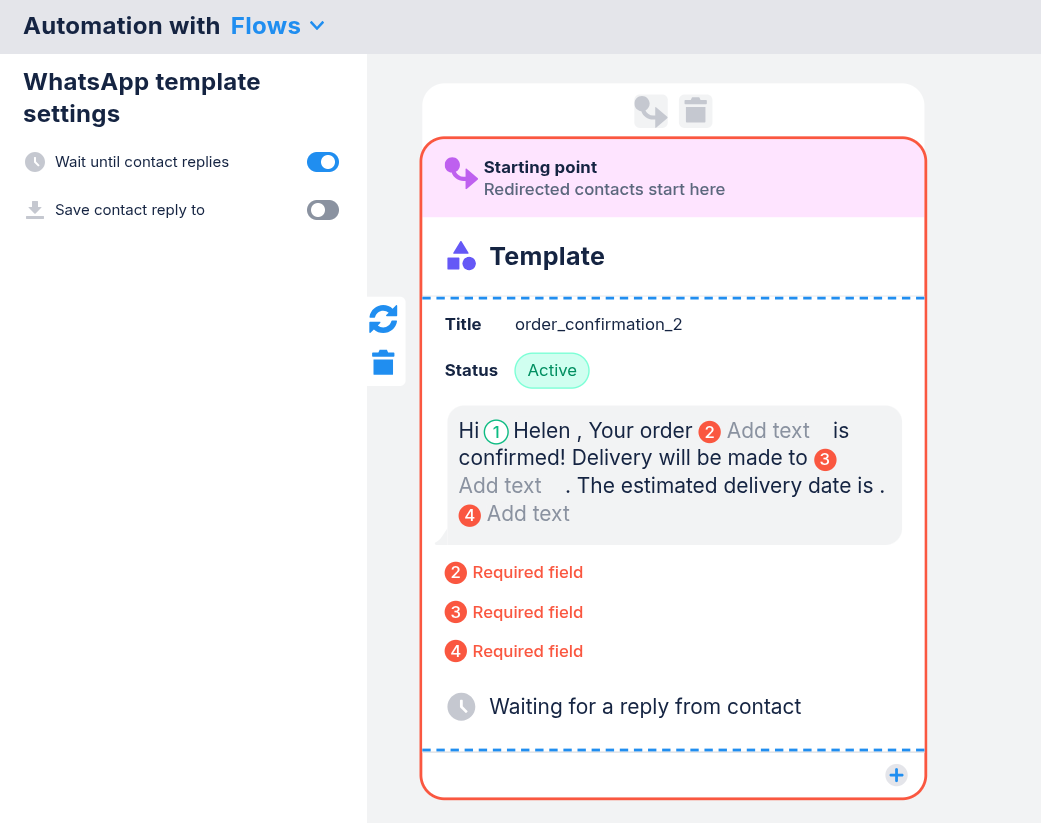
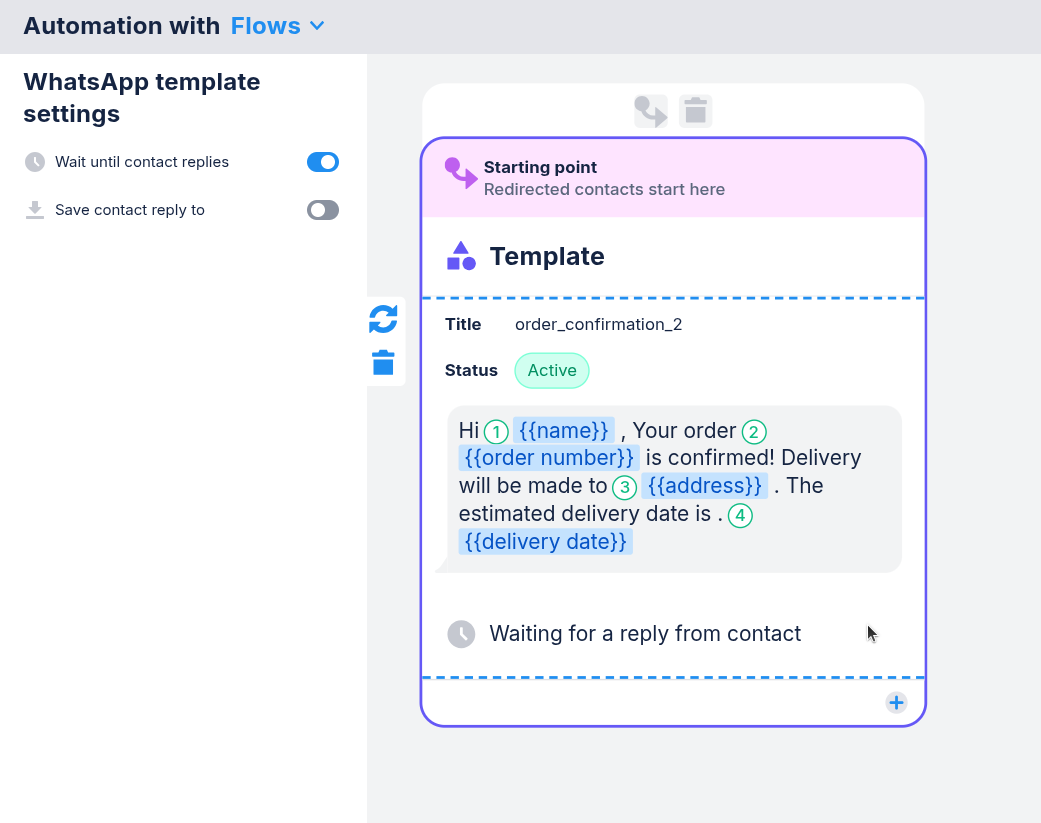
6. Add required fields to finish setting up your template.
You can now use your template anywhere in your flow. For example:
Appointment reminders: Send a notification 24 hours before scheduled appointments
Abandoned cart follow-ups: Re-engage customers who didn't complete purchases
Webinar notifications: Alert participants shortly before your event begins
Promotions: Share new products or special offers with customers
Order status updates: Let customers know when their order ships or is delivered