
Make sure you have all the required permissions ⬈ before beginning this process.
You can bring automation and AI tools to your existing business number in WhatsApp. Key benefits include:
- Keep your current WhatsApp Business App number: no need to change your contact information
- Keep all your contacts and chat history: nothing gets lost in the transition
- Add Fuely AI to WhatsApp chats: automate responses and improve customer service
- Connect CRMs and other tools: integrate with your existing business workflow
In other words, you’ll continue using WhatsApp Business app exactly as you do now, but add Chatfuel on top of your workflow.
How to connect your existing number
1. Go to panel.chatfuel.com and open
Settings in the left sidebar.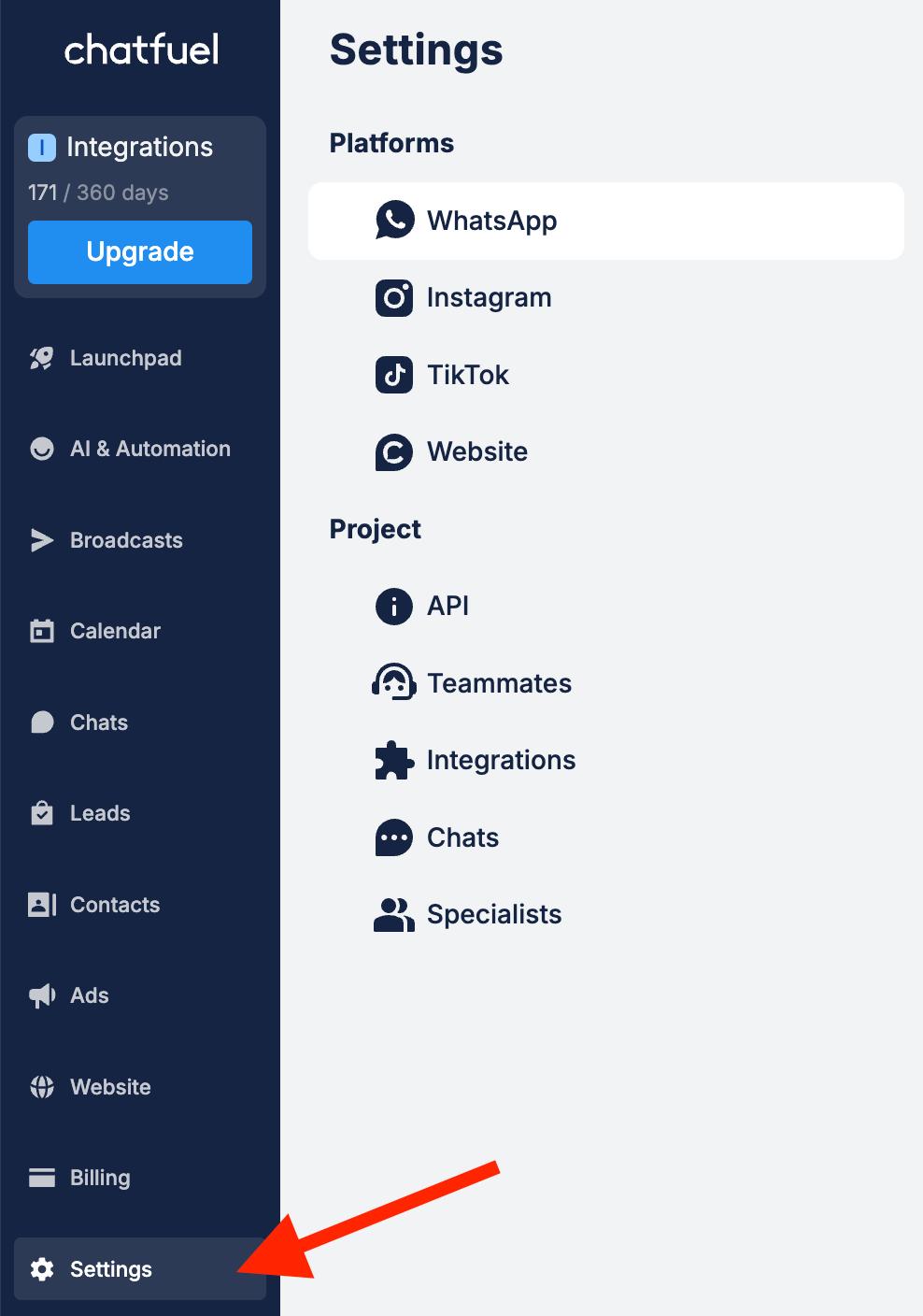
2. Click
Add number in the WhatsApp section.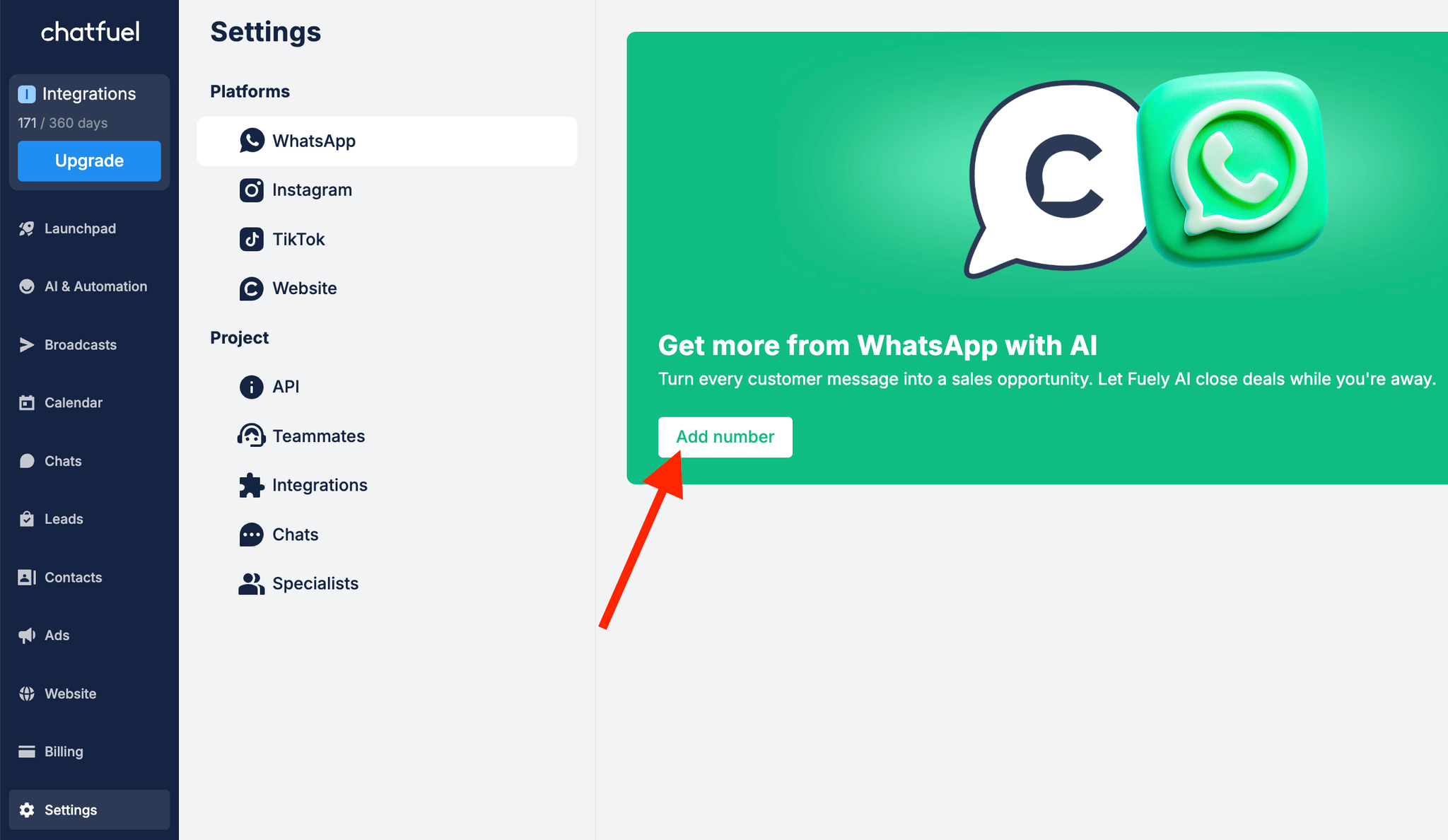
3. You'll see an authentication screen. Log in to your Facebook account and click
Continue.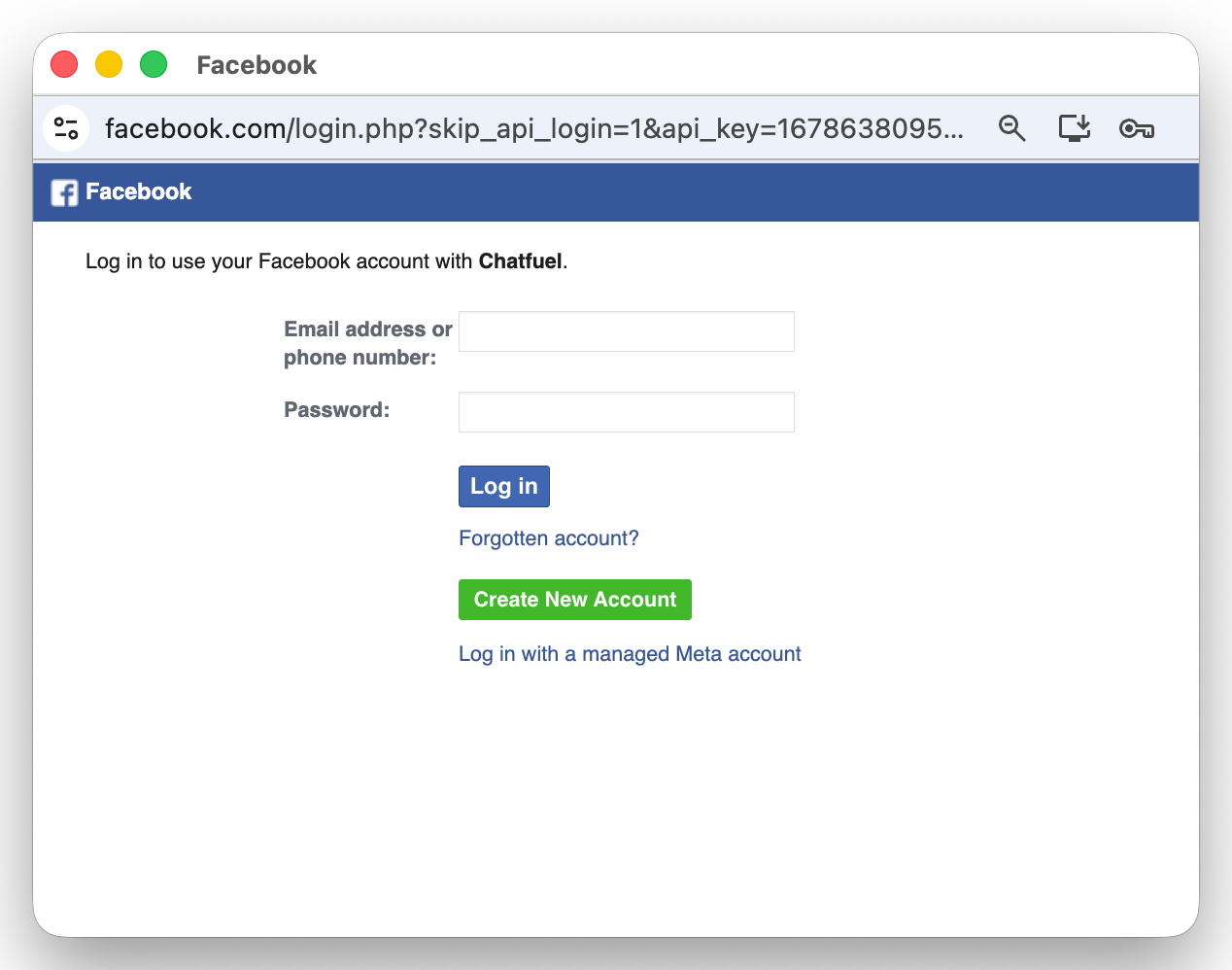
4. Сlick
Continue to authorize Chatfuel to connect with your WhatsApp Business account.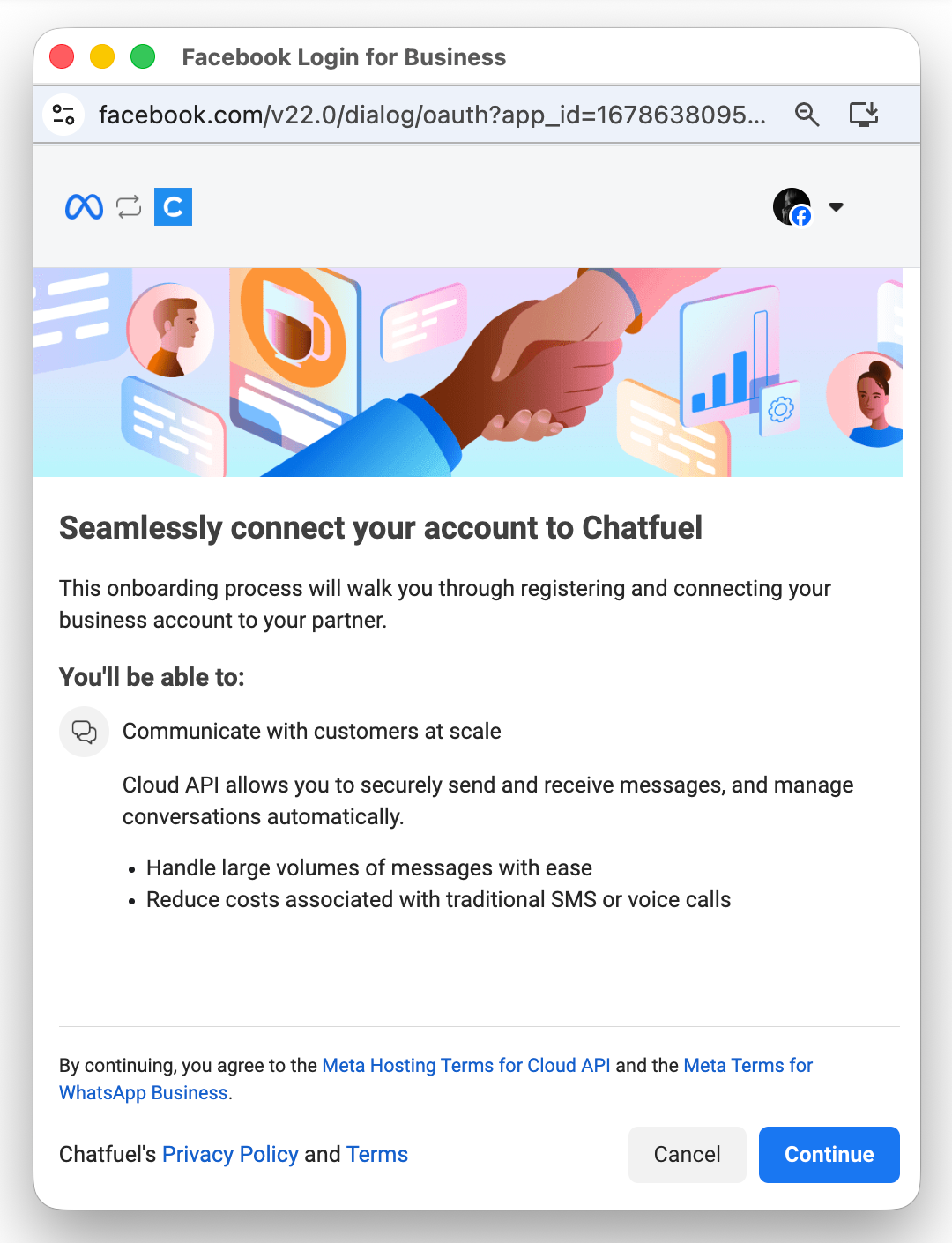
5. On this screen you need to
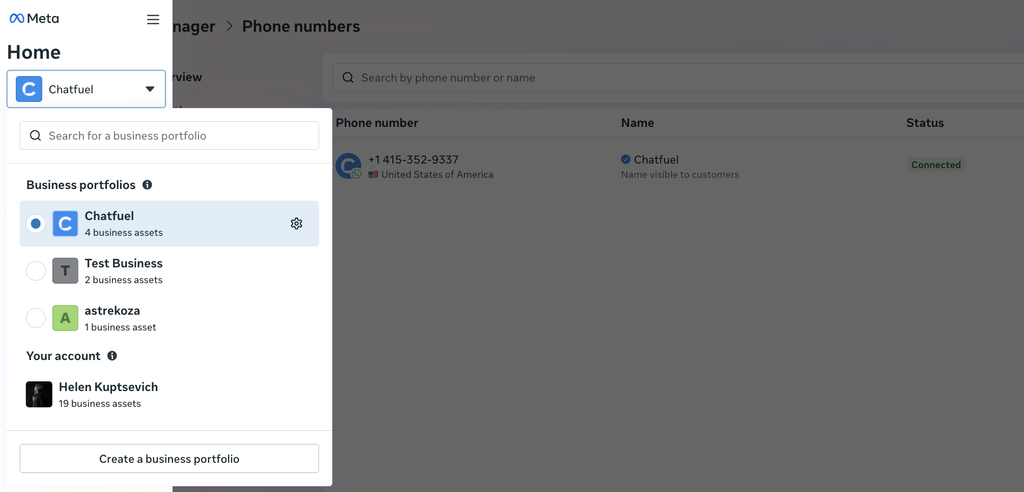
5.1. select your existing business portfolio or create a new one. This is simply your Meta Business account where all your business tools live.
5.2. select
Connect a WhatsApp Business app to connect your active phone number. This option allows you to link a number that's already in use in WhatsApp Business.5.3. click on
Next to continue.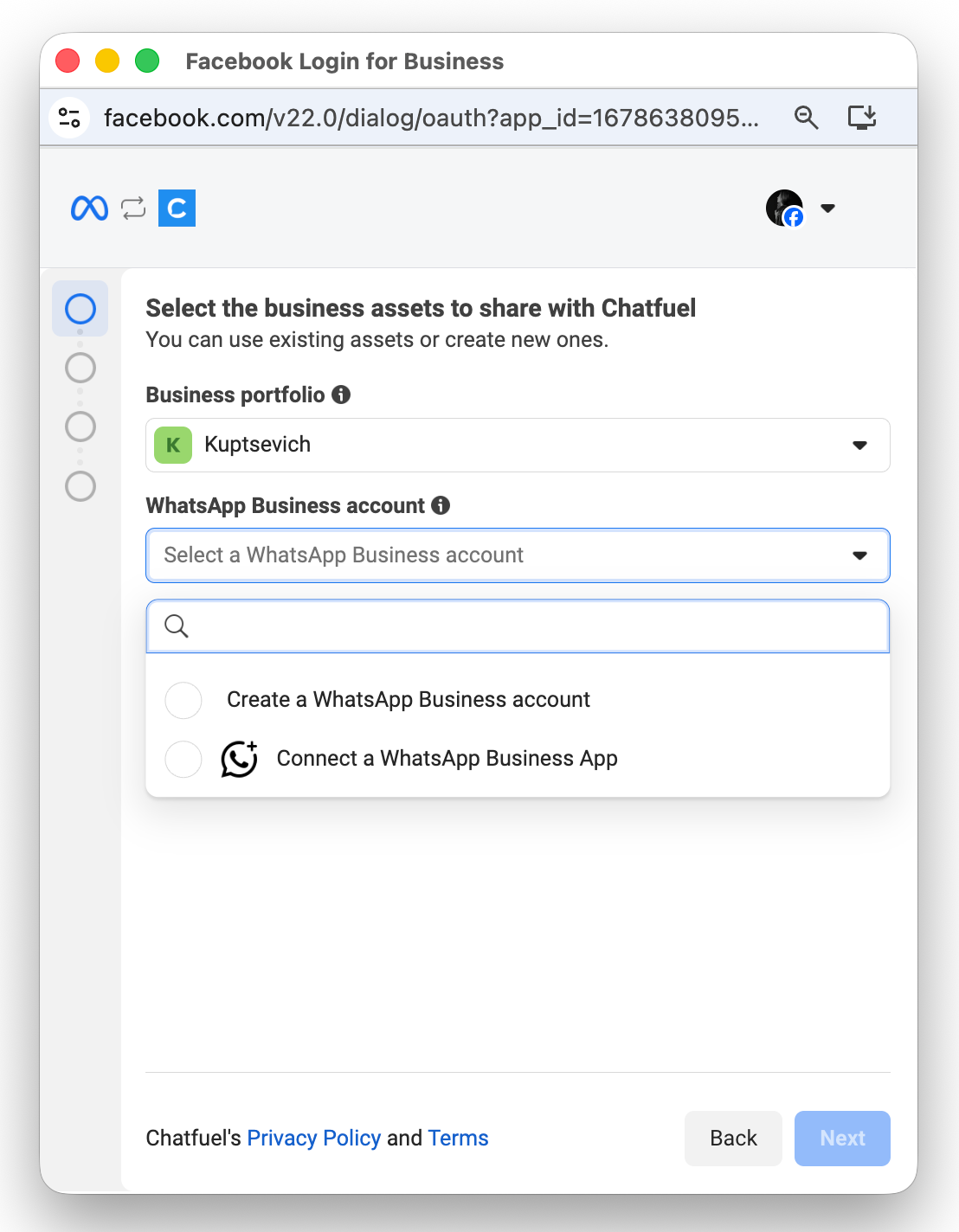
6. If you selected
Create a Business Portfolio option in step 5.1., you need to fill out all business information.Even if some fields are marked as optional, it's best to fill them out completely for better account verification. Click
Next when done.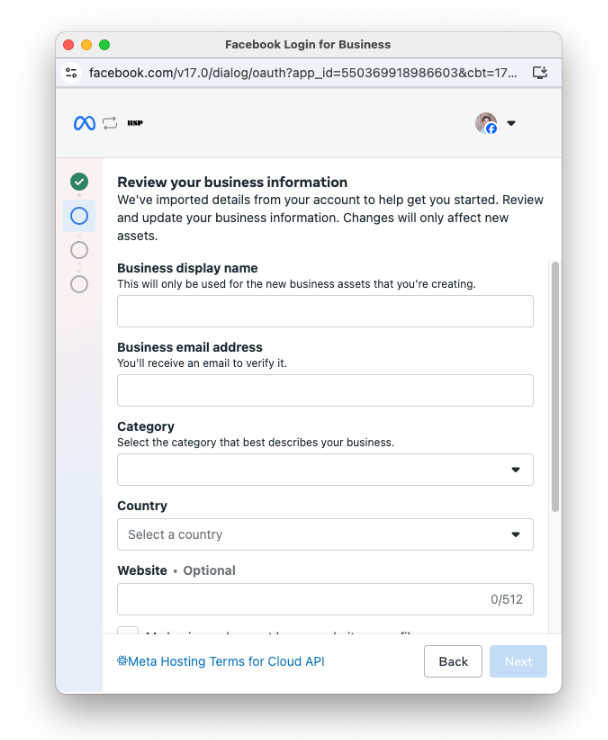
7. Enter your active WhatsApp Business phone number and click
Next.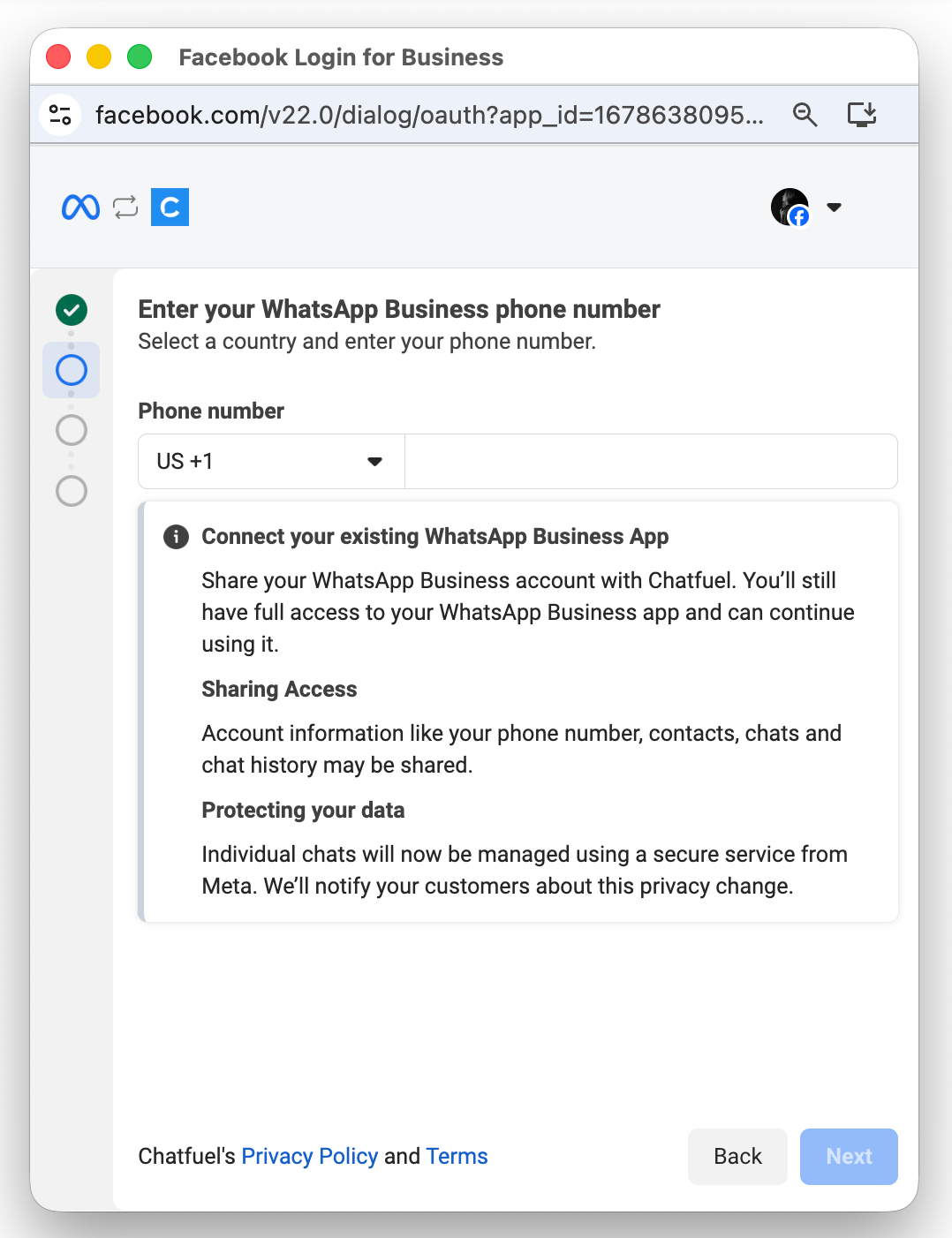
⚠️ Troubleshooting: Can’t add your number?
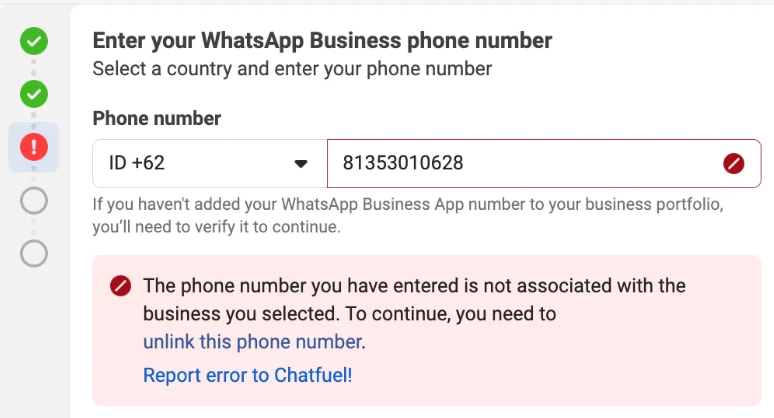
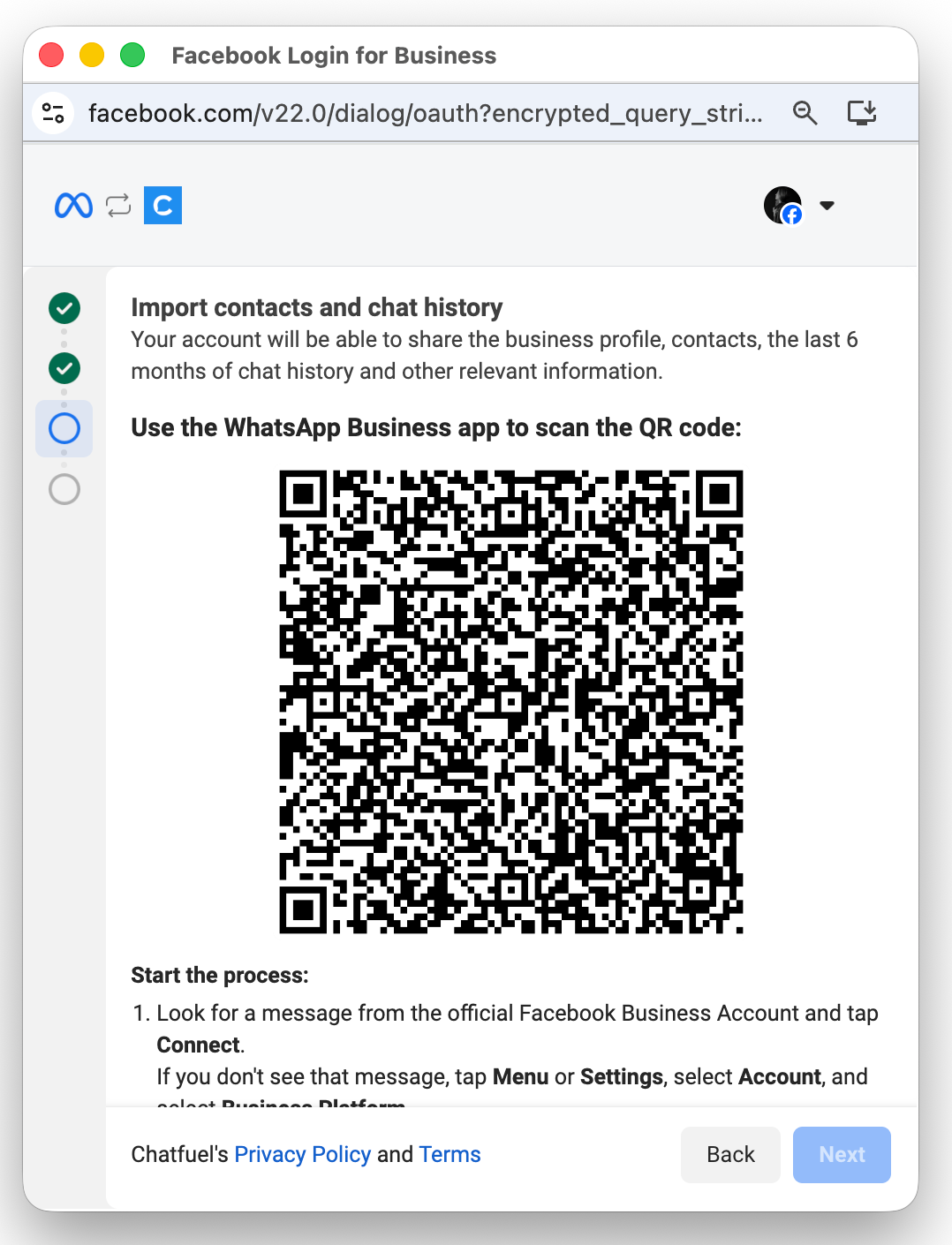
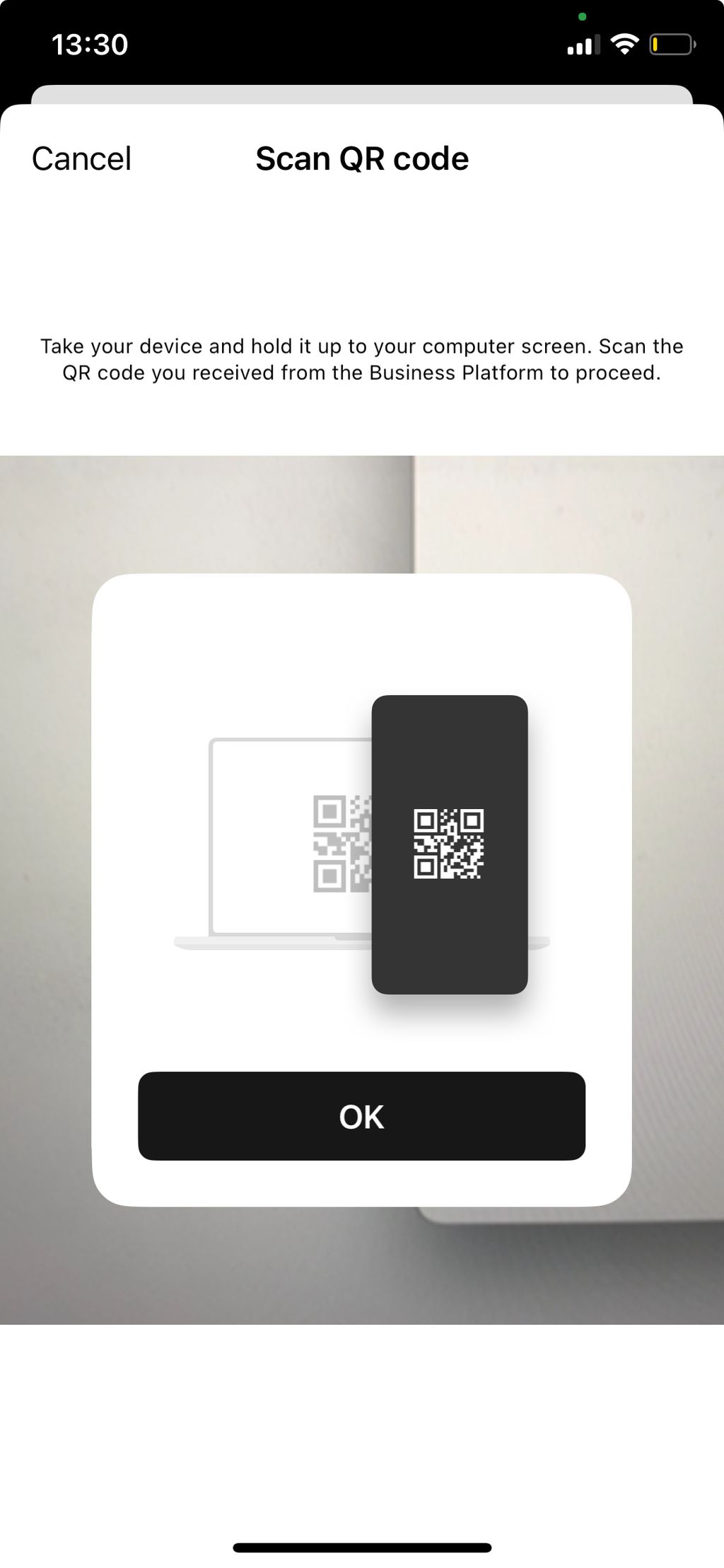
8. You’ll see a QR code on your screen.
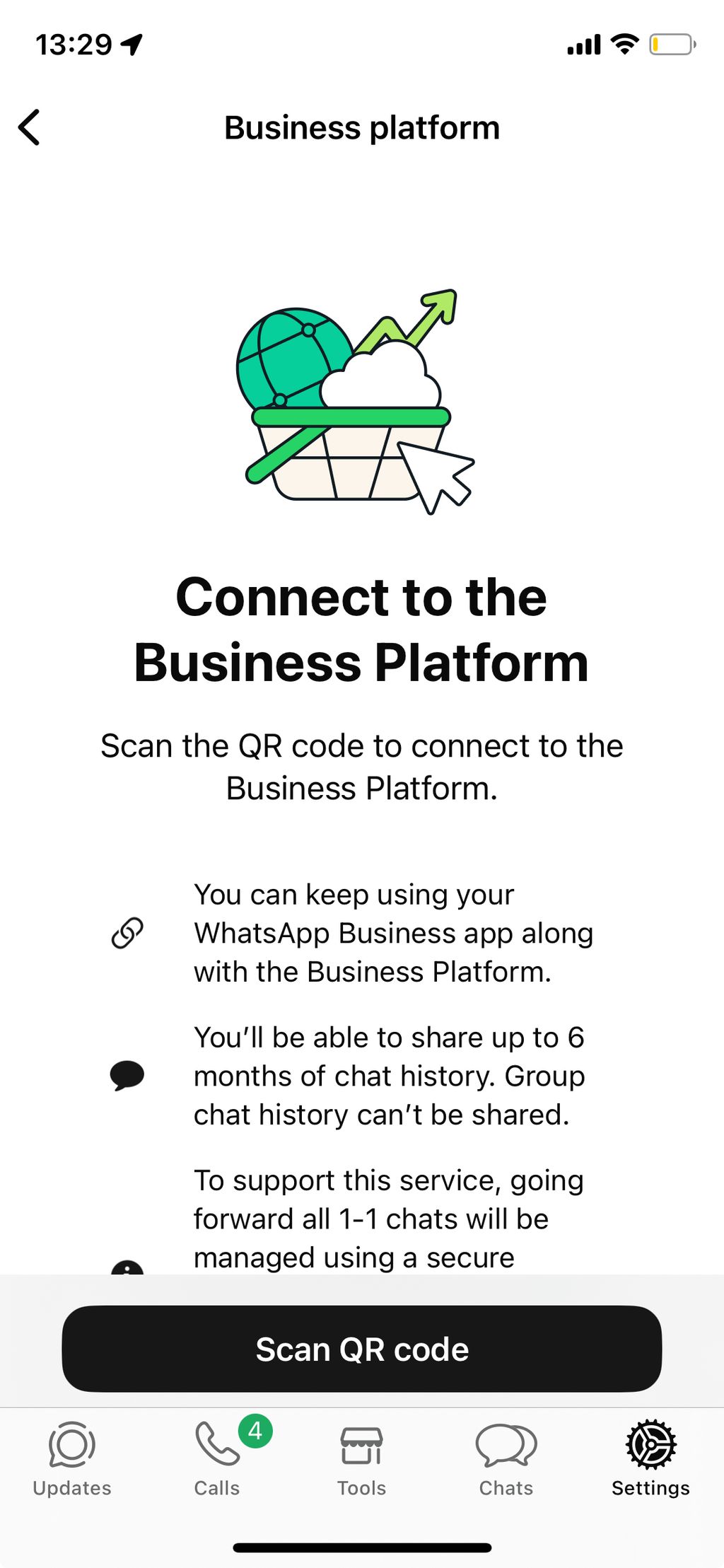
9. To scan the code do the following:
9.1. Open your WhatsApp Business app on your phone. Look for a message from Facebook Business (this usually arrives within a few seconds) and click
Connect.9.2. If you don't see the message, go to
Settings → Account → Business Platform.9.3. Tap
Connect to the Business Platform.9.4. Scan the QR code displayed on your computer.
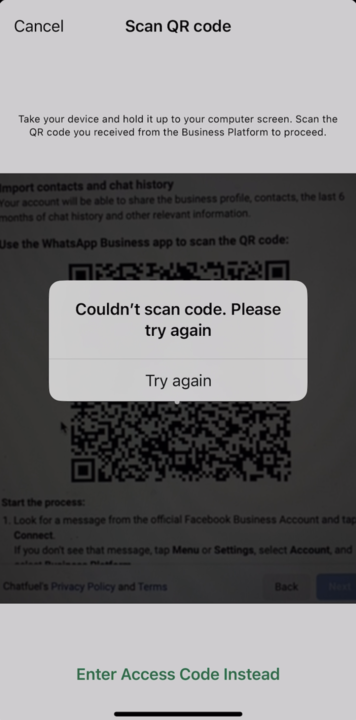
⚠️ Troubleshooting: "Couldn't scan code" error
10. You'll be asked if you want to share your chat history with Chatfuel.
Your options:
- Share chats: imports up to 6 months of chat history and contacts (recommended).
- Don't share chats: only future conversations will be managed through Chatfuel.
⚠️ Note: This decision cannot be changed later, so choose carefully.
Tap
Share chats (or your preferred option), then scan the QR code with your phone.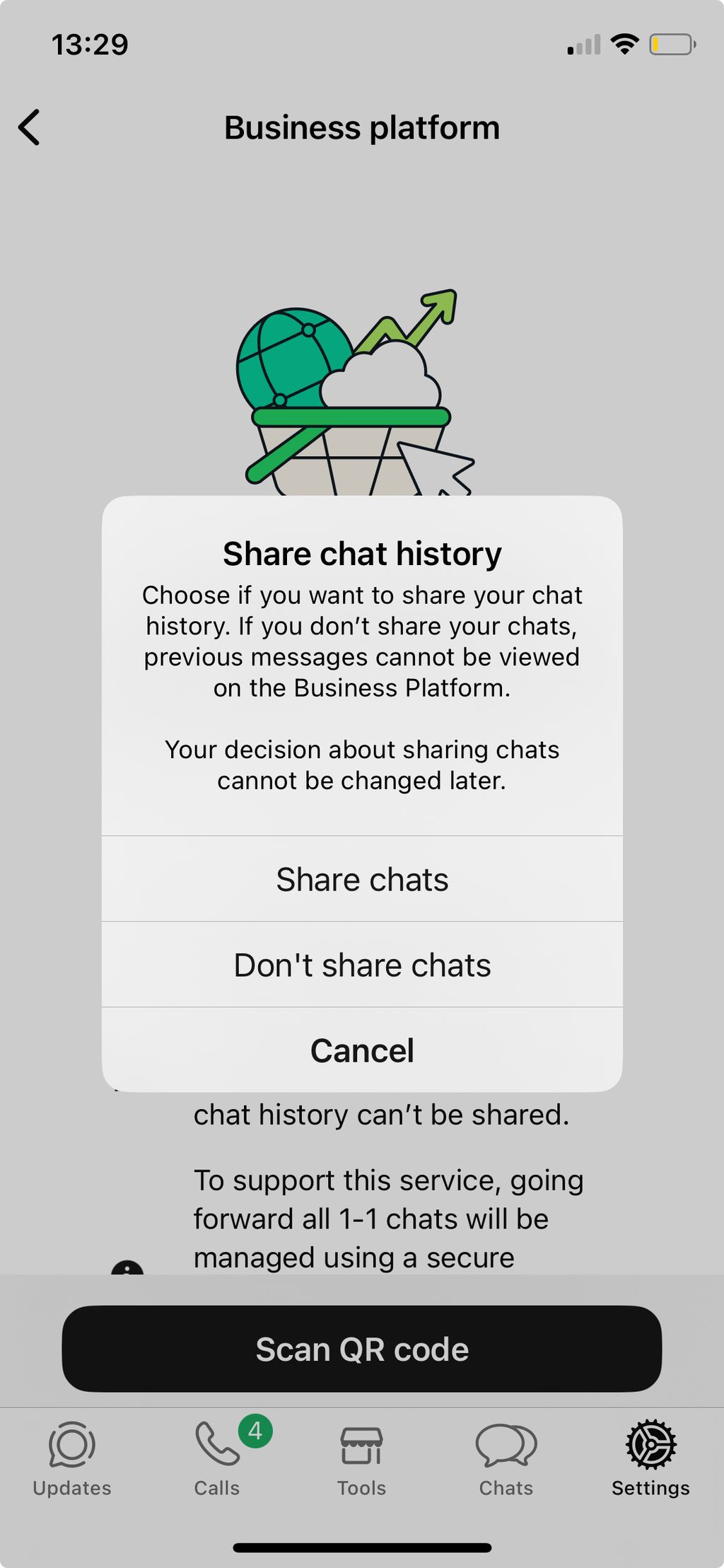
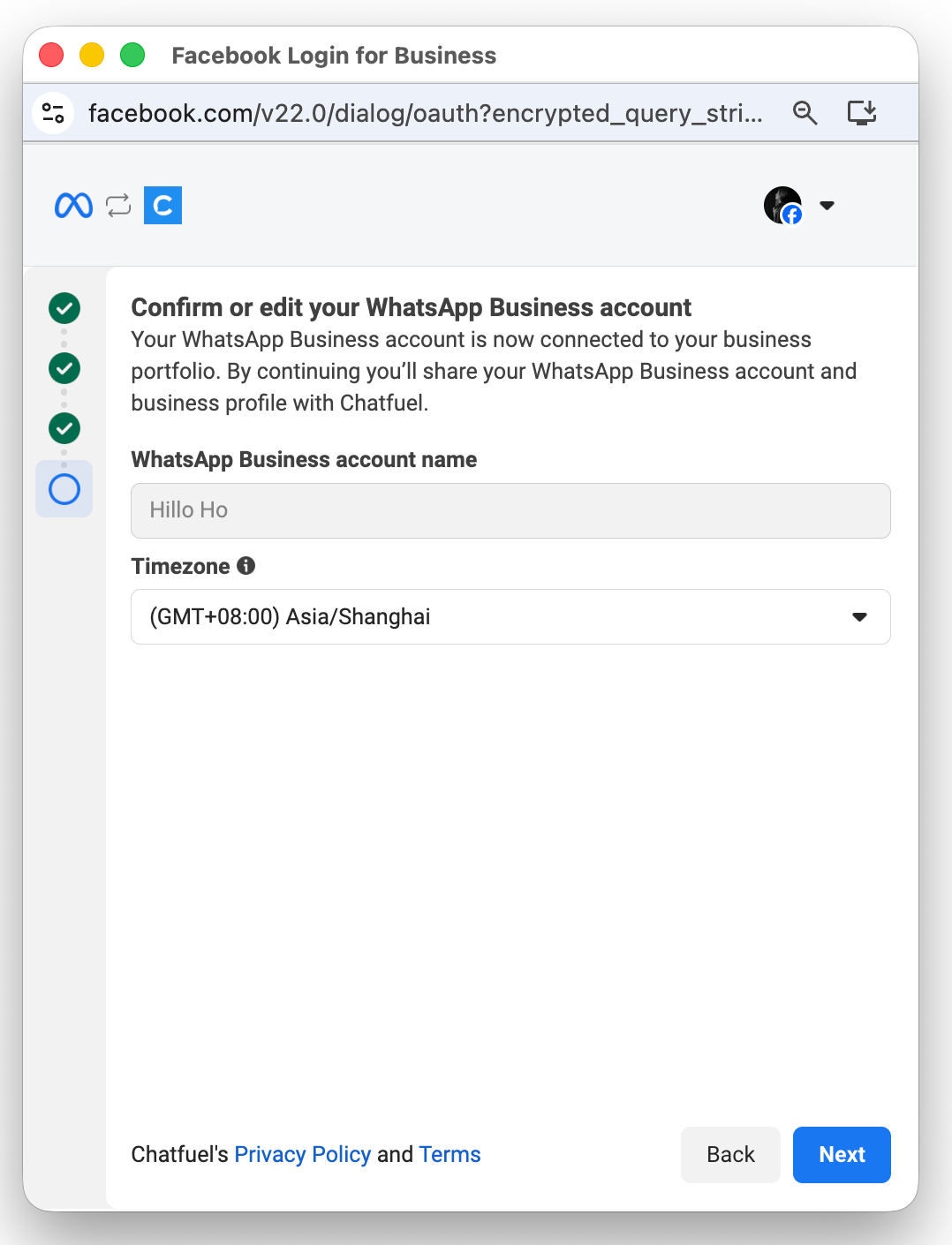
- Make sure your timezone is set correctly, then click
Next.
The correct timezone ensures your scheduled messages and automation run at the right times.
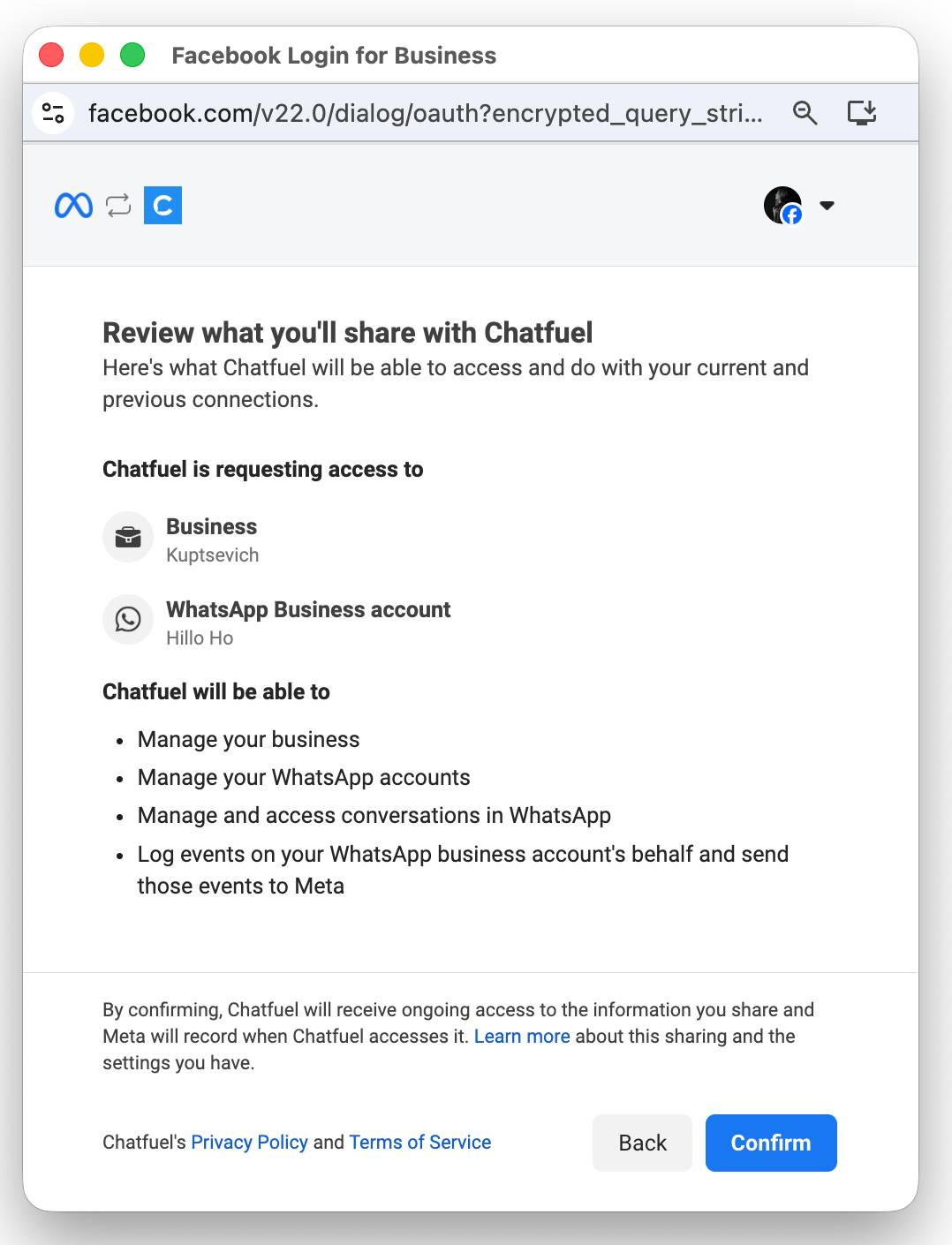
- Review what Chatfuel will be able to access and do with your WhatsApp Business account and click
Confirm.
13. You will see a success message: "Your account is connected to Chatfuel". Click
Continue to feature setup to proceed.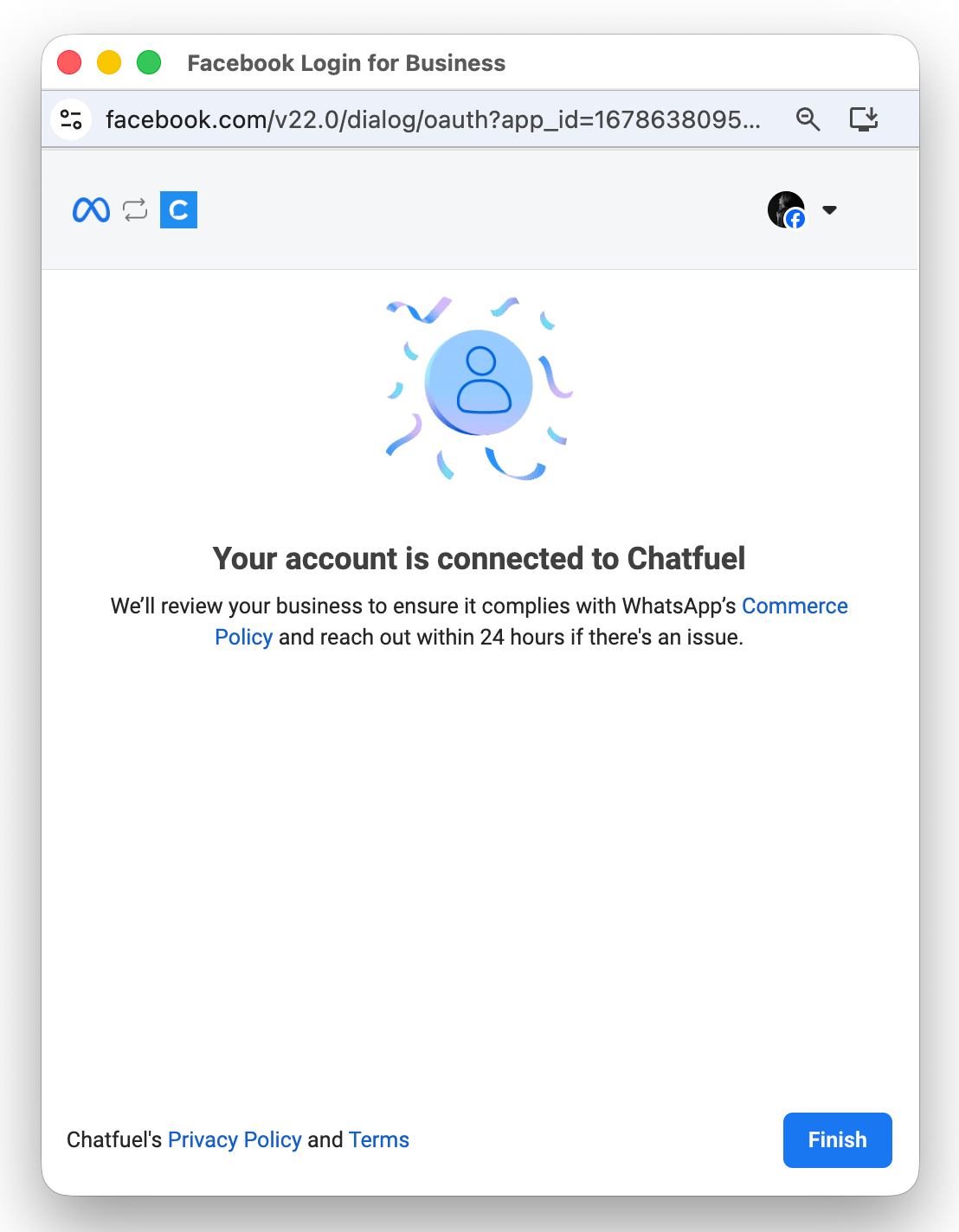
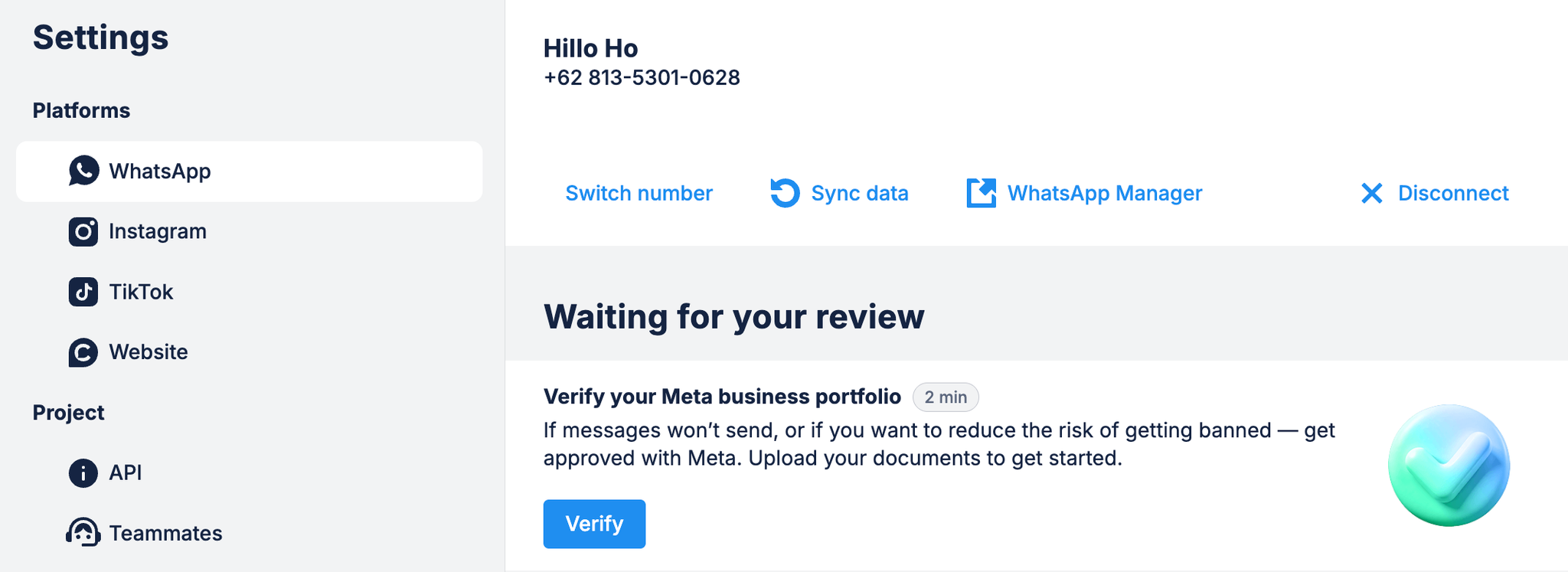
✔ Done. Your WhatsApp number should now appear in Settings.
Shared contacts
If you chose to share contacts during setup, you can find them in the Contacts tab.
All imported contacts will have "Imported from WhatsApp Business App" in the Original source property.