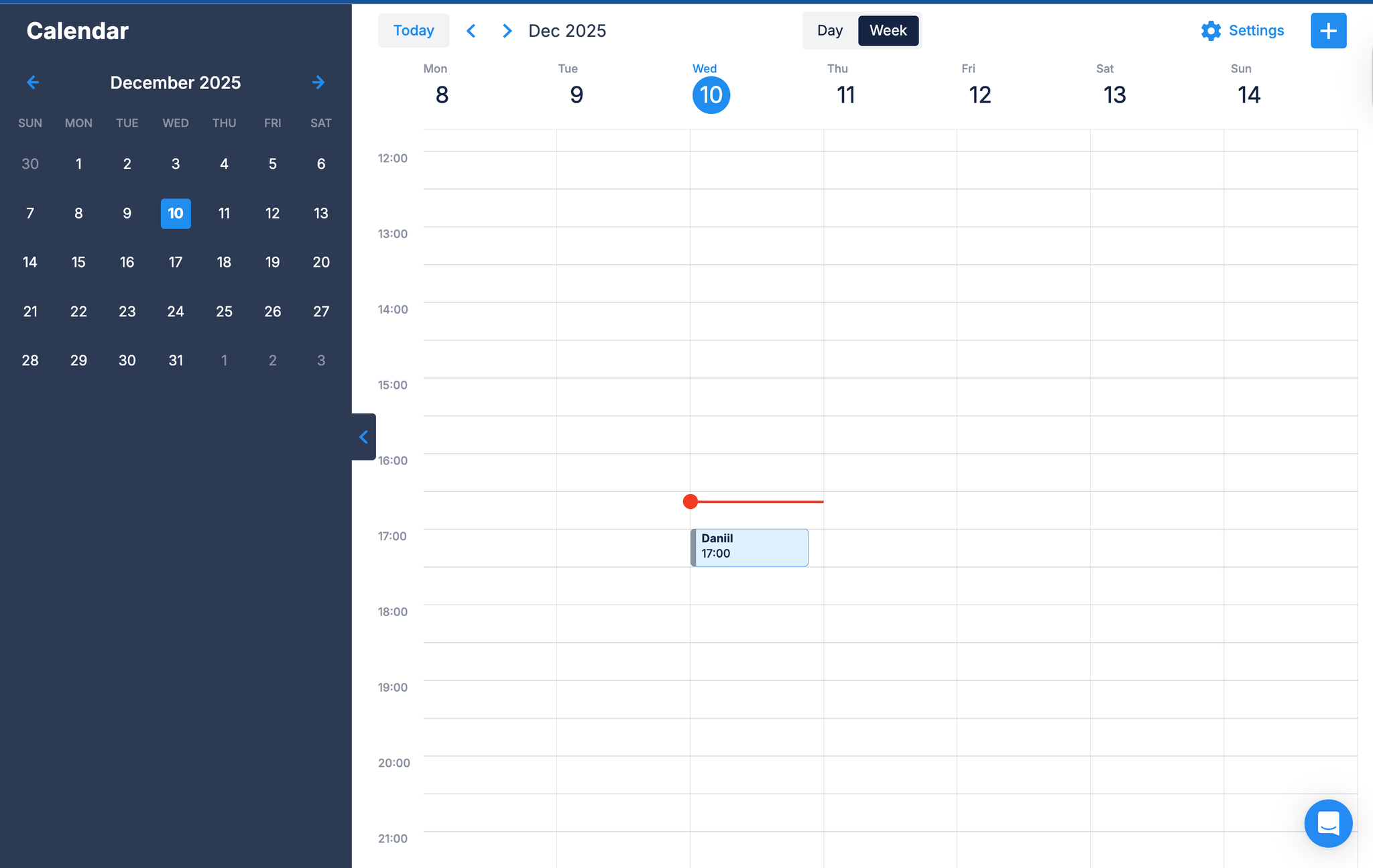
Calendar lets you schedule bookings with your contacts directly in Chatfuel. Every booking you create automatically sends confirmation and reminder messages to your contacts via WhatsApp.
This means:
- Your customers get instant confirmation for their bookings
- They get reminders 1 day and 2 hours before their booking
- You see fewer no-shows because people don't forget about their booking
- You can track booking statuses — confirmed, needs rescheduling, or cancelled
- Everything happens automatically — no manual work from your team
Think of it as your booking system + automatic reminders rolled into one.
Before you start
To use Calendar and get the automatic reminders working, you need to:
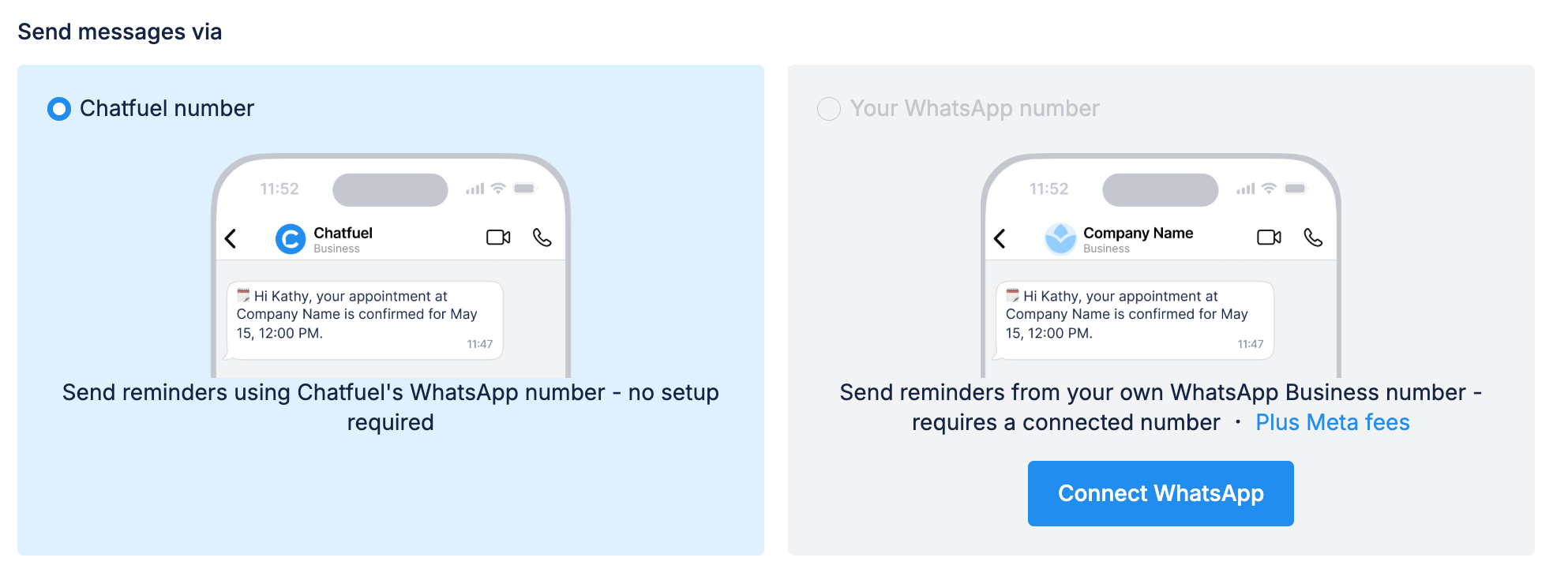
Option 1: Use Chatfuel's WhatsApp number (quickest setup)
You can start using Calendar immediately without connecting your own WhatsApp. Chatfuel will send confirmations and reminders from our shared number. This is the fastest way to get started.
Option 2: Use your own WhatsApp number
To send messages from your business number, you need to:
1. Connect WhatsApp
Your WhatsApp business number must be connected to Chatfuel. Use your existing number or use a new one.
2. Add payment method in Meta
WhatsApp only lets you message contacts who wrote to you in the last 24 hours. This is a problem when you want to send confirmations and reminders for bookings (which might be days later).
To solve that, reminders use WhatsApp templates – Meta’s approved way to send messages beyond 24 hours. We use Utility templates, which are the cheapest category for business communications like reminders.
To send them, you’ll need to have an active payment method connected to Meta. Even for free reminders.
Will I be charged?
It depends. If a contact messaged you in the last 24 hours – no. These reminders are free. If not, you will be charged a small fee ($0.01–$0.06 USD per message depending on your country).
These charges come from Meta directly, not Chatfuel.
Example pricing in some countries
Country | Price (USD) | Price (local) |
Argentina | $0.019 | ~ARS 19 |
Brazil | $0.032 | ~BRL 0.16 |
Chile | $0.016 | ~CLP 15 |
Colombia | $0.010 | ~COP 39 |
EU | $0.067 | ~€0.06 |
India | $0.006 | ~₹0.50 |
Mexico | $0.019 | ~MX$0.33 |
Peru | $0.010 | ~PEN 0.04 |

Even for free reminders, you’ll have to add a payment method to Meta.
Setting up your Calendar
Before creating bookings, configure your calendar in the Settings tab:
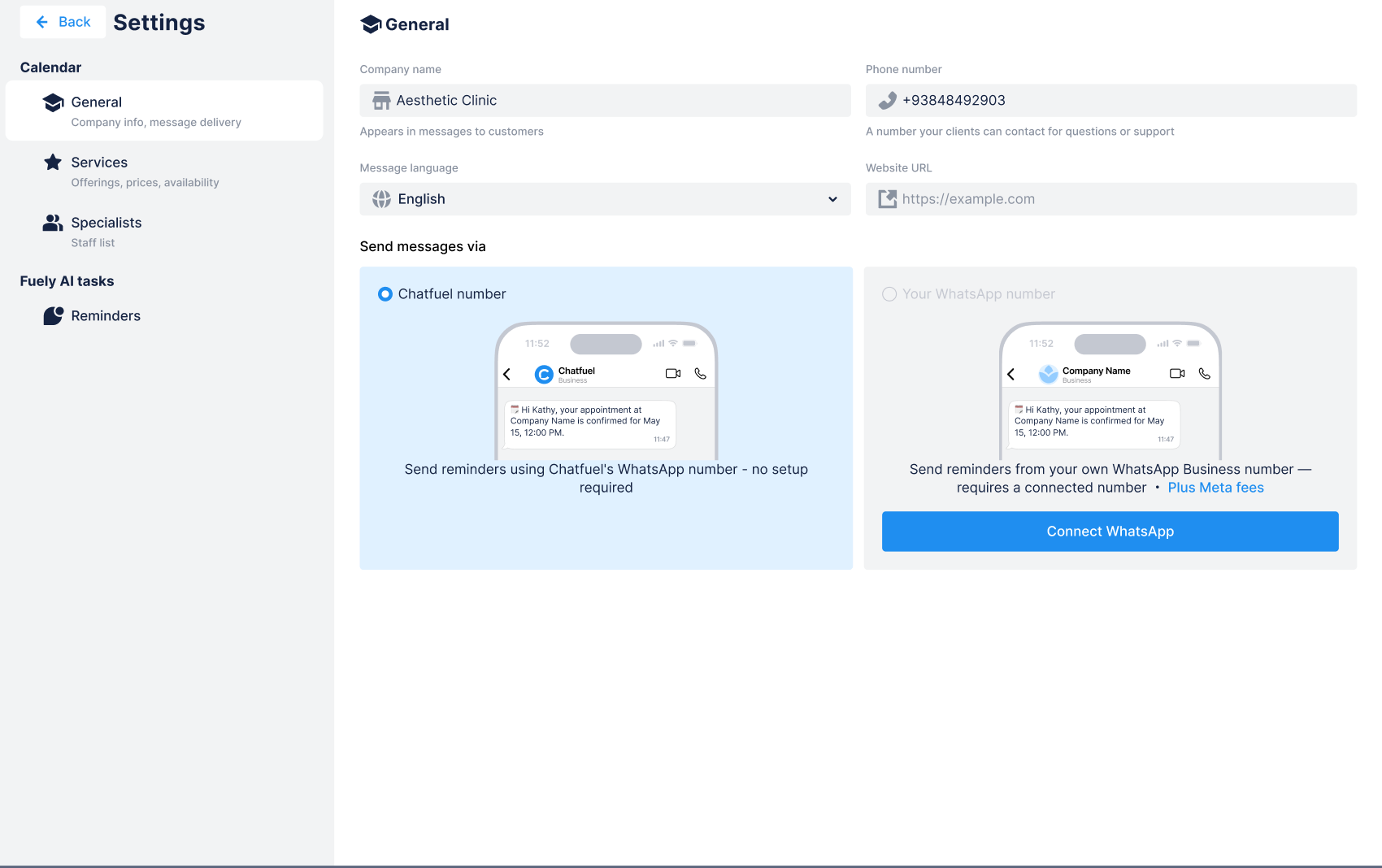
General Info
- Company Name — appears in messages to your customers
- Company Phone — your business contact number
- Language — language for customer notifications
WhatsApp Number
Choose which number sends your booking messages:
- Chatfuel number (default) — start immediately, no setup required
- Your business number — requires WhatsApp connection and Meta payment method
Services
Create service types that your business offers. For each service, you can set:
- Service name (required)
- Duration (required)
- Price (optional) — supports multiple currencies
- Description (optional) — helps AI agents answer customer questions
When you add a service to a booking, the end time is automatically calculated based on duration.
Specialists
Add team members who deliver your services (barbers, trainers, therapists, etc.). For each provider:
Details tab:
- Photo — quality photos increase booking rates
- Name (required) and last name
- Description — helps AI personalize responses
Services provided tab:
- Select which services this person can deliver
- AI will use this to match customers with the right specialist
Working hours tab:
- Set individual schedules for each provider
- Add multiple shifts per day (e.g., morning and afternoon with lunch break)
- Hours cannot exceed your business working hours
Notifications
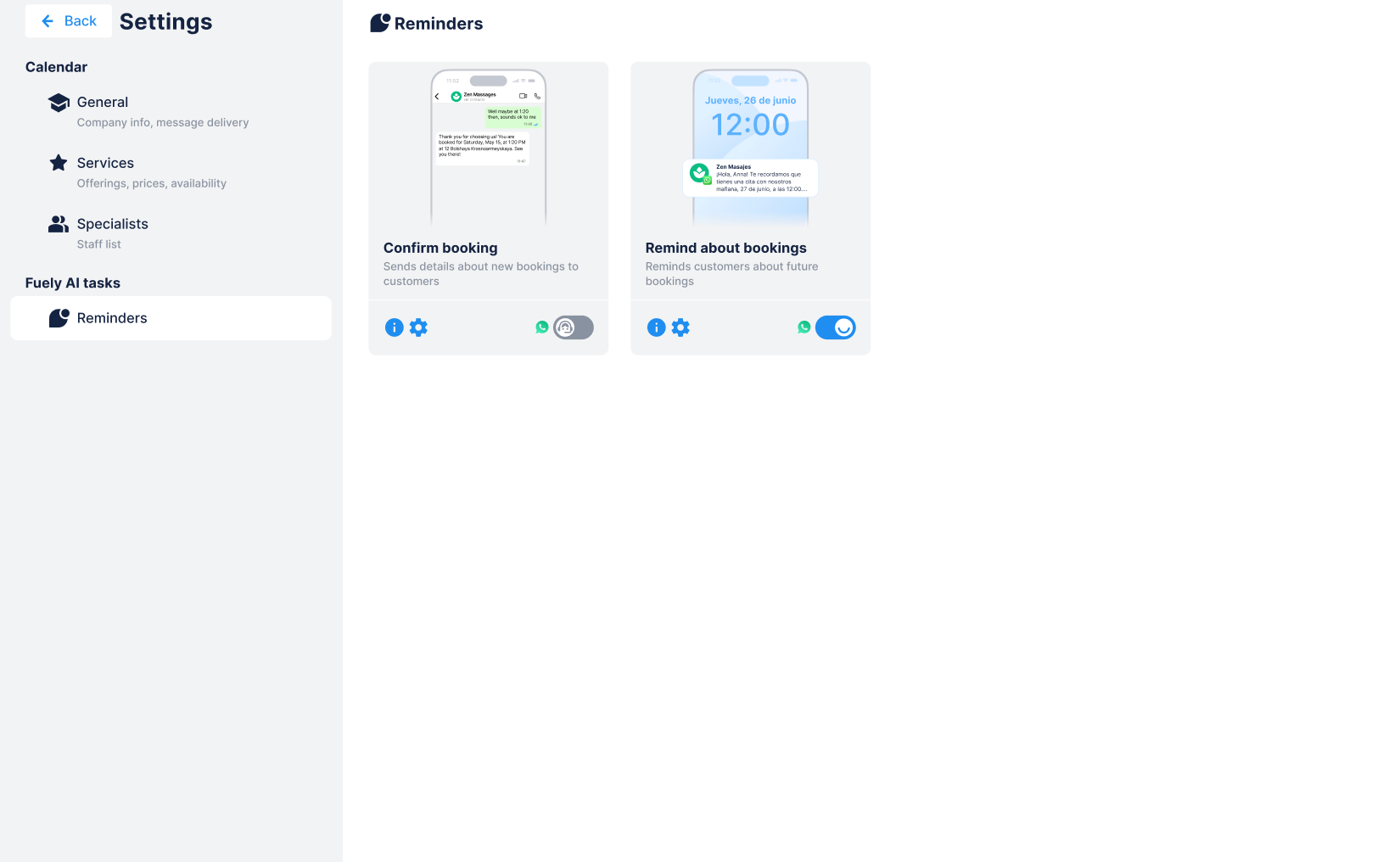
Configure which messages are sent automatically and customize their content.
Message types:
- Immediate confirmation — sent right after booking is created
- 1-day reminder — sent 24 hours before the booking
- 2-hour reminder — sent 2 hours before the booking
All messages automatically include booking time, date, and your company name.
Adding custom instructions
Each notification type has an "Additional info" field where you can add custom text for your business needs:
- Location and directions ("We're on the 3rd floor, take the elevator on the left")
- Preparation tips ("Please arrive 10 minutes early and bring your ID")
- Parking info ("Free parking available behind the building")
- What to bring ("Wear comfortable clothes for the session")
- Cancellation policy ("Please cancel at least 24 hours in advance")
Custom text limit: 512 characters per message type.
If you leave the field empty, the standard message template is used without additional info.
How to create bookings
1. Open
Calendar.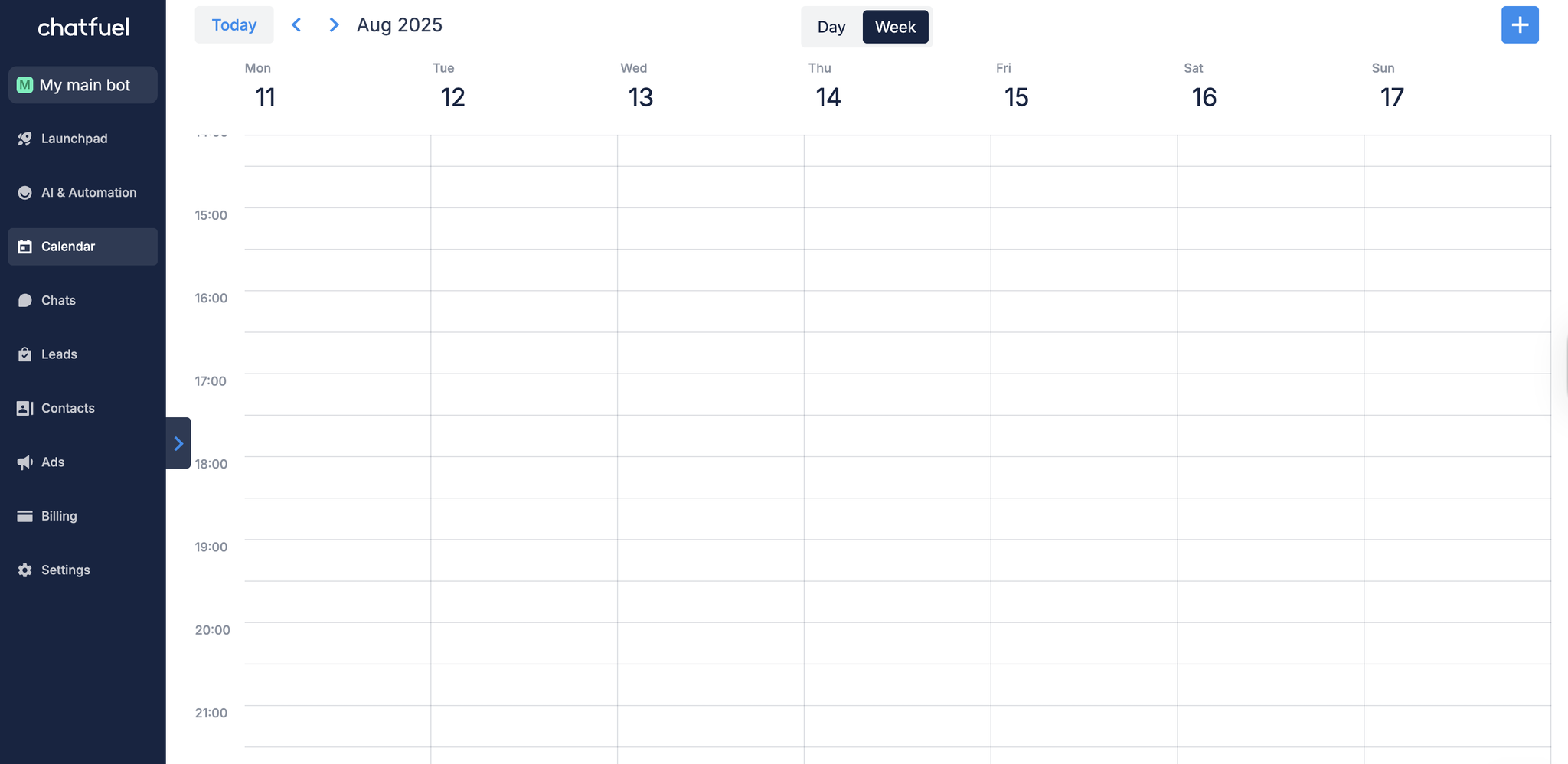
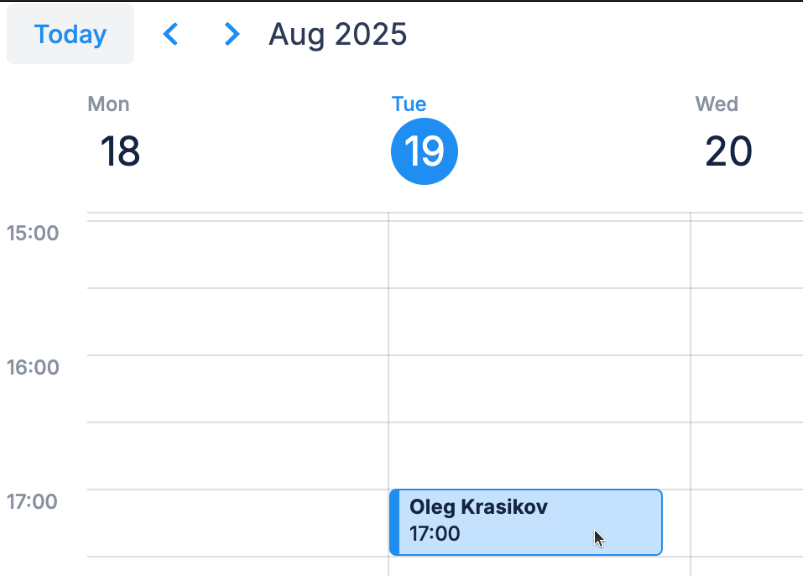
2. Click the time slot you want for your booking.
Or, click on the
+ button instead.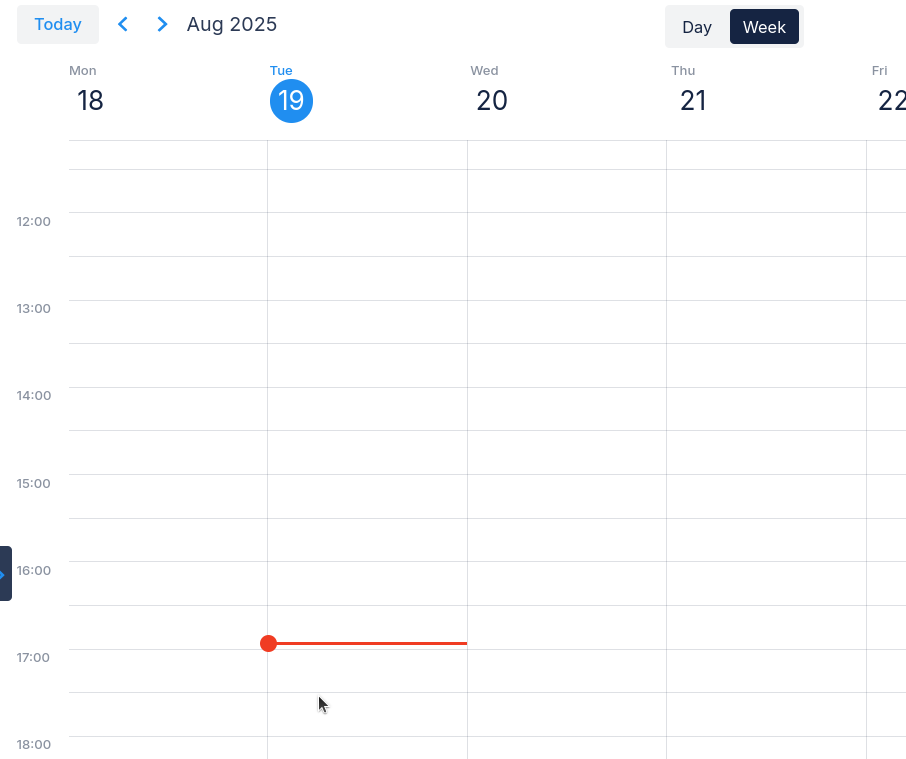
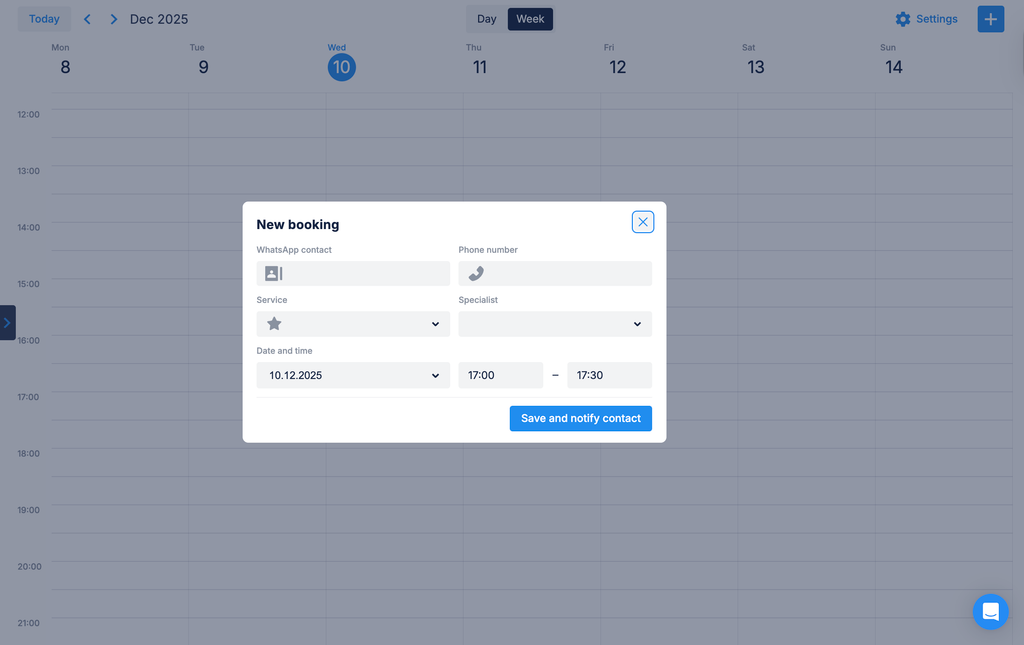
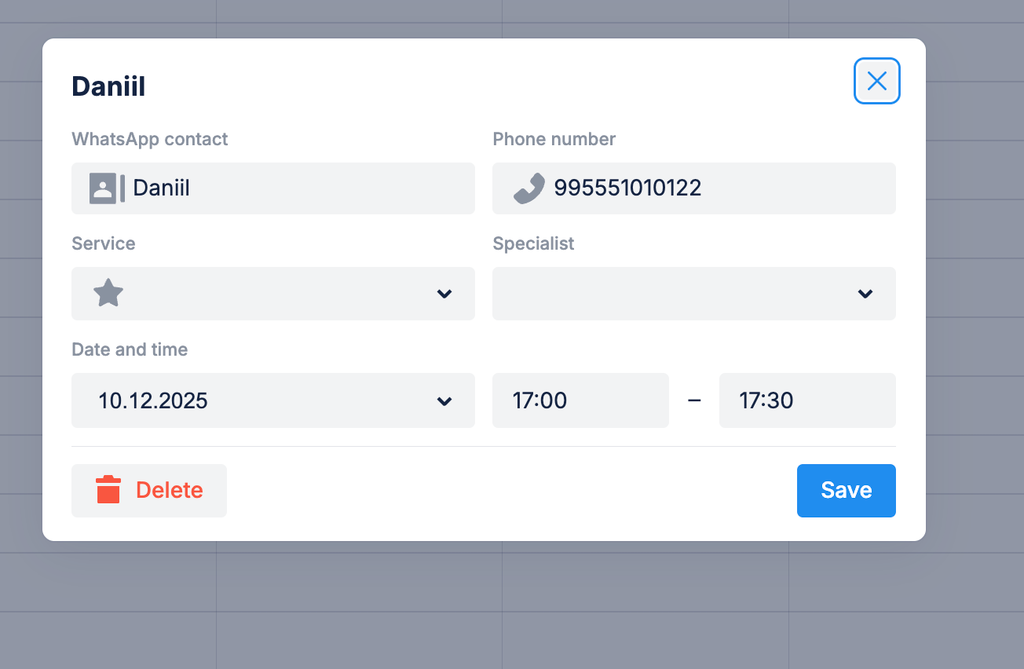
3. Fill out the fields:
- WhatsApp contact
- Phone number
- Date and time
- Service (optional) — auto-fills duration
- Service provider (optional)
If your customer is not on the list of your contacts yet, just type their number to create a new contact.
4. Click
Save to save your booking to calendar.Done! Your meeting is now created.
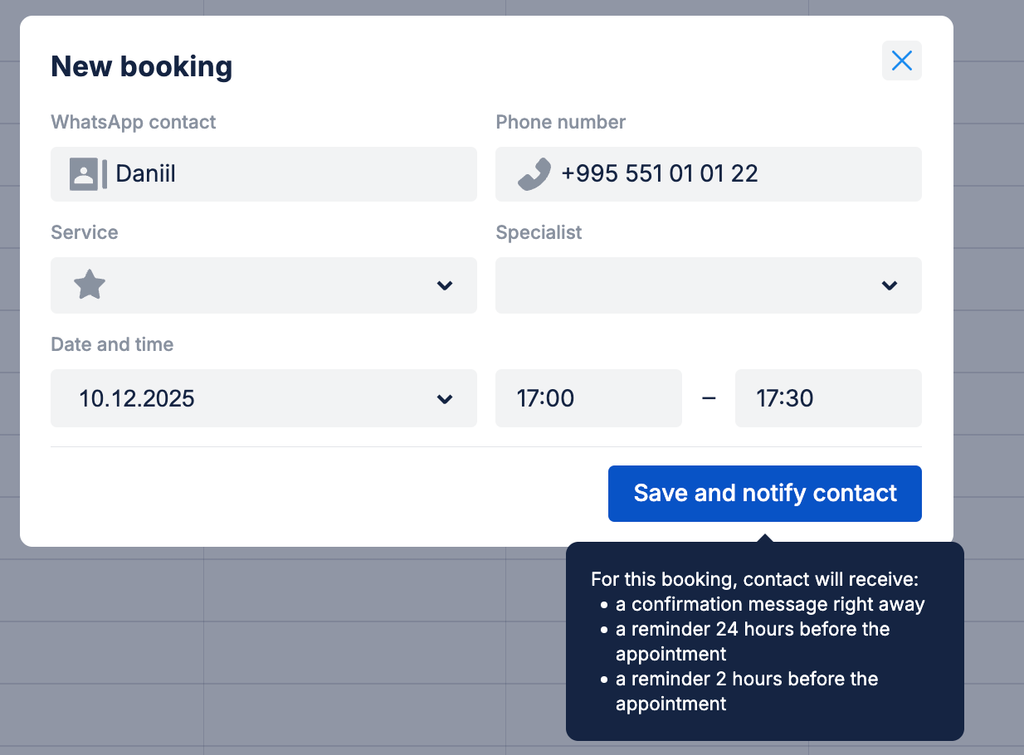
What happens next? Your booking appears in Calendar and your customer immediately gets a confirmation message on WhatsApp.
Booking statuses
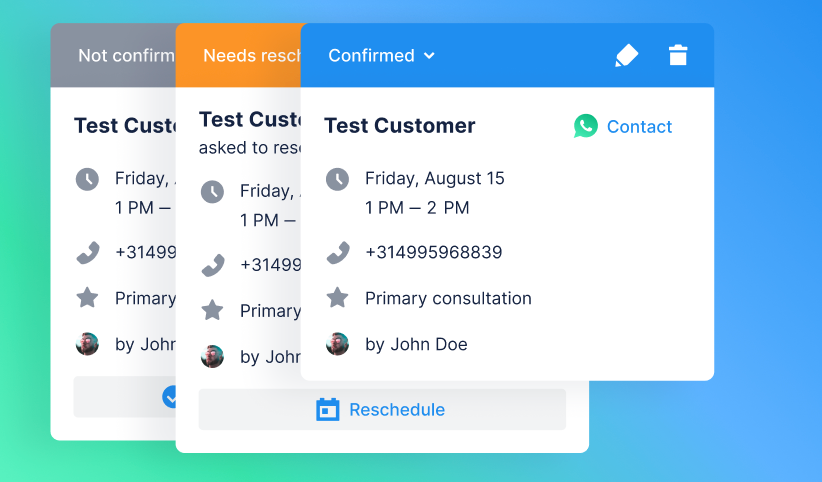
Every booking has a status that updates automatically based on customer responses:
- Not confirmed — default status for new bookings, waiting for customer response
- Confirmed — customer clicked "Confirm" in the reminder
- Needs rescheduling — customer requested to reschedule
- Cancelled — customer cancelled the booking
How it works:
The 24-hour reminder includes buttons for customers to respond:
- Confirm
- Cancel
- Reschedule
When a customer taps a button, the booking status updates automatically in your calendar.
Manual status changes:
You can also change status manually by clicking the status indicator — useful when a customer confirms by phone or other means.
Smart reminders:
If a booking is cancelled, the 2-hour reminder won't be sent — no point reminding someone who already cancelled.
How to edit, remove bookings
- Edit: click the booking, make necessary changes, and
Save.
- Cancel: simply click
Delete.
What's available now (and what's coming)
Available now
- Calendar view — clear schedule for all bookings
- Create bookings manually — schedule bookings in a familiar view
- Auto confirmations — customers get booking details right away in a WhatsApp message
- Auto reminders — sent 1 day and 2 hours before bookings
- Custom reminders — edit the text that gets sent to customers
- Booking status tracking
- Services with duration, price, and descriptions
- Specialists with individual schedules
- Send from Chatfuel number or your own
Coming soon
- Booking with Fuely AI — Fuely AI books appointments for you based on conversations with customers
- Multiple calendars for different teammates
- "Attended/No-show" status tracking
- Multiple calendars — separate calendars for different teammates
Important notes & FAQ
What if I don't have WhatsApp connected?
You can still use Calendar! Bookings will be created and reminders sent from Chatfuel's WhatsApp number. Connect your own number later in Settings when you're ready.
What if my customer doesn't have WhatsApp?
Currently, reminders only work through WhatsApp.
Can I use Calendar in Flows?
Not yet, but this is planned.
What happens to existing bookings if I switch WhatsApp numbers?
New notifications will be sent from whichever number is selected at the time of sending. Your booking history is preserved.
Can I delete a service that has future bookings?
No — you'll see an error. Instead, disable the service's availability so it won't appear for new bookings.